Choosing the Best Calendar Format for Google Sheets and Templates

The most effective calendar format for Google Sheets depends on your workflow: choose a traditional 7-column monthly grid for high-level desktop deadline tracking, a vertical list-style layout for mobile-friendly task management, an annual multi-month grid for high-level executive roadmaps, or a Gantt timeline for complex project deliverables. Finding the right layout comes down to how your organization processes dates, tasks, and team milestones. Whether you are coordinating court filings at a law firm, scheduling patient appointments in a clinical practice, or organizing quarterly municipal board sessions, selecting the correct visual framework early saves hours of restructuring later.
Depending on whether your team primarily works from multi-monitor desktop workstations or mobile devices, your layout choice will vary significantly across operational use cases.
| Calendar Format | Best Use Case | Primary Layout | Mobile Friendliness | Formula Complexity |
|---|---|---|---|---|
| Traditional Monthly Grid | High-level monthly overviews, team desk schedules, client deadlines | 7-Column, Landscape Grid | Moderate (Requires horizontal panning) | Moderate to Advanced |
| List-Style Monthly | Daily task lists, field audit tracking, sequential project milestones | Vertical Rows, Portrait | High (Optimized for vertical scrolling) | Low |
| Annual Overview (4x3) | Executive roadmaps, public holiday schedules, tax filing planning | 12 Mini-Grids, Multi-Month | Low (Best suited for print & large screens) | Advanced |
| Gantt & Project Timeline | Multi-week consulting deliverables, court trial prep phases | Horizontal Bars across Dates | Low (Desktop analytical view) | Advanced |
| Daily Schedule / Shift Log | Hourly room bookings, specialized staff rotations (10-min intervals) | Single Day / Week Breakdown | High to Moderate | Low to Moderate |
Pre-Built Template Gallery Options
If you need a functional schedule immediately without building custom formulas, Google Sheets provides an accessible built-in library. Navigating to the Google Sheets homepage and expanding the Template Gallery reveals several dependable base files, including the official Annual Calendar, Daily Planner, Schedule, Gantt Chart, and Attendance sheets.
These pre-configured options feature zero-formula setup for baseline entries. In the Annual Calendar template, changing the primary year cell recalculates the entire twelve-month workbook automatically. For professional practices that want to keep overhead low while establishing quick internal schedules, making a template copy takes only a single click via File > Make a copy.
The trade-off with standard templates is functional rigidity. Built-in templates generally do not connect dynamically to external database tabs, nor do they automatically aggregate multiple daily tasks from an event log into a unified box without manual formula customization.
List-Style vs. Traditional Grid Layouts
When choosing between a traditional landscape grid and a vertical list-style format, consider your team's hardware.
- Traditional Grid Layouts: Arrange seven columns across six rows to mirror a classic wall planner. They offer an intuitive visual map of a month, making it effortless to understand deadline distribution across weeks. However, shrinking a seven-column grid onto a smartphone screen often compresses cell text, hiding valuable details.
- List-Style Layouts: Place dates sequentially down Column A with corresponding rows for tasks, responsible staff, budget allocations, and status tags. This portrait orientation delivers seamless mobile navigation for consultants and field directors on the move, allowing smooth vertical scrolling without awkward horizontal pinching and zooming.
Step-by-Step: Building a Dynamic Calendar from Scratch
Building a custom dynamic calendar allows you to build a system where changing a single dropdown updates every single date, weekend shade, and associated deliverable across your sheet.

To understand how Google Sheets processes calendar mechanics, follow this architectural flow:
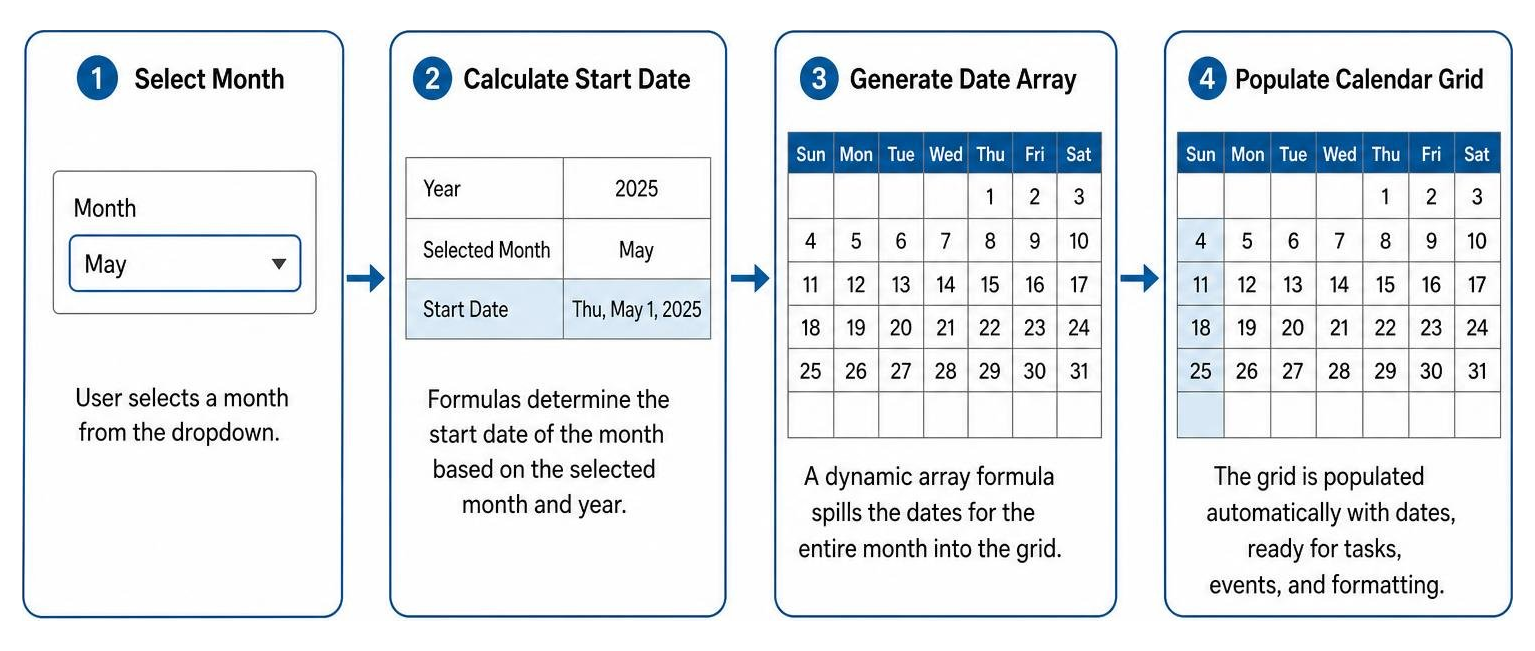
Designing a Dynamic Calendar Format for Google Sheets with Formulas
Let us build a clean, automated monthly calendar grid that automatically adjusts for month length and leap years.
Step 1: Set Up the Control Panel
- In cell
B1, type your target Year (for example,2026). - In cell
B2, enter your target Month as a number from1to12(or set up Data Validation via Data > Data validation > Dropdown list containing month numbers). - In row 4, enter your weekday headers from
A4toG4: Sunday, Monday, Tuesday, Wednesday, Thursday, Friday, and Saturday.
Step 2: Generate the Dynamic Grid Array Rather than typing individual dates manually or dragging static numbers across cells, we will generate the entire 6-row by 7-column calendar matrix using an array formula.
In cell A5, place the following formula:
=SEQUENCE(6, 7, DATE($B$1, $B$2, 1) - WEEKDAY(DATE($B$1, $B$2, 1)) + 1, 1)
Here is how this formula constructs your calendar:
DATE($B$1, $B$2, 1)establishes the true starting date for the first day of your chosen month.WEEKDAY(...)calculates the exact day of the week that the 1st falls on (where Sunday equals 1).- Subtracting the weekday value and adding 1 shifts the initial start point back to the exact Sunday that begins that calendar view.
SEQUENCE(6, 7, start_date, 1)generates a complete 42-cell array (6 weeks by 7 days) incrementing by one day per cell.
If you prefer exploring ready-made structural templates with integrated aggregation logic, reviewing a custom calendar view template illustrates how multi-cell data mapping operates behind the scenes.
Populating Events from an Automated Log Tab
For healthcare practices, legal teams, and corporate operations, entering schedules directly inside calendar grid squares quickly creates clutter. A far more robust system separates your raw data entry from your visual display.
Create a secondary tab named Event_Log. Structure it with structured columns:
- Column A:
Date(e.g.,2026-10-14) - Column B:
Event_Title(e.g.,Quarterly Board Review) - Column C:
Category(e.g.,Compliance) - Column D:
Lead_Staff(e.g.,Director J. Smith)
To format operational files, client registries, and mailing schedules cleanly across corporate worksheets, check our guide on how to format addresses in Excel or Google Sheets.
To pull events dynamically from your Event_Log into the corresponding date square on your main calendar sheet, navigate to the text row directly beneath your date cell (for example, cell A6 beneath date cell A5) and apply:
=IFERROR(TEXTJOIN(CHAR(10), TRUE, FILTER(Event_Log!$B$2:$B, Event_Log!$A$2:$A = A5)), "")
This lookup formula checks the entire Event_Log for entries matching the date in A5. The FILTER function collects all matching event titles, while TEXTJOIN(CHAR(10), ...) merges them neatly into a single cell, separating individual events with clean line breaks. Make sure to enable Wrap Text (Format > Wrapping > Wrap) on your calendar cells so multi-line event listings display cleanly.
Advanced Styling, Formatting Tokens, and Visual Polish
A functional calendar must be visually clear and intuitive. By mastering custom number tokens and conditional formatting logic, you can turn a dense spreadsheet into an executive-ready dashboard.
Applying Custom Tokens to Your Calendar Format for Google Sheets
Google Sheets stores all dates as serial numbers counted from December 30, 1899 (where day 1 is December 31, 1899). When you place a formula like =SEQUENCE(...) into a cell, Sheets may display the result as a full timestamp string such as 2026-09-01.
To display only the clean day number (e.g., 1, 2, 3) without altering the underlying date value used by your formulas:
- Highlight your 42-cell date range (
A5:G15). - Navigate to Format > Number > Custom currency and date formats (or custom number formats).
- Enter the single token:
d
For comprehensive developer insights into format masks, numeric tokens, and API-driven batch formatting rules, reference the official Google Sheets date and number formats guide. Using d gives you clean single-digit numbers for days 1 through 9, while dd forces a leading zero (e.g., 01, 02).
Conditional Formatting Rules for Weekends, Holidays, and Today
Conditional formatting provides immediate visual cues that help teams prioritize work at a glance.

Apply these three essential rules across your entire calendar date range (A5:G15):
Dim Days Outside the Selected Month:
- Condition: Custom formula is
- Formula:
=MONTH(A5)<>$B$2 - Formatting: Set text color to light gray (
#999999) and background to pure white. This keeps spillover days from previous and next months readable without distracting from the active month.
Highlight the Current Day:
- Condition: Custom formula is
- Formula:
=A5=TODAY() - Formatting: Apply a bold font with a soft accent background (such as light blue or subtle gold) to anchor the viewer immediately on today's agenda.
Shade Weekend Columns:
- Condition: Custom formula is
- Formula:
=OR(WEEKDAY(A5)=1, WEEKDAY(A5)=7) - Formatting: Apply a very light gray fill (
#F3F3F3) to visually distinguish non-working days from active production schedules.
Sharing, Team Collaboration, and Professional Printing Best Practices
A primary advantage of using Google Sheets for organizational schedules is native real-time cloud collaboration. Multiple department heads, paralegals, and project coordinators can update logistics simultaneously without creating disconnected file versions.
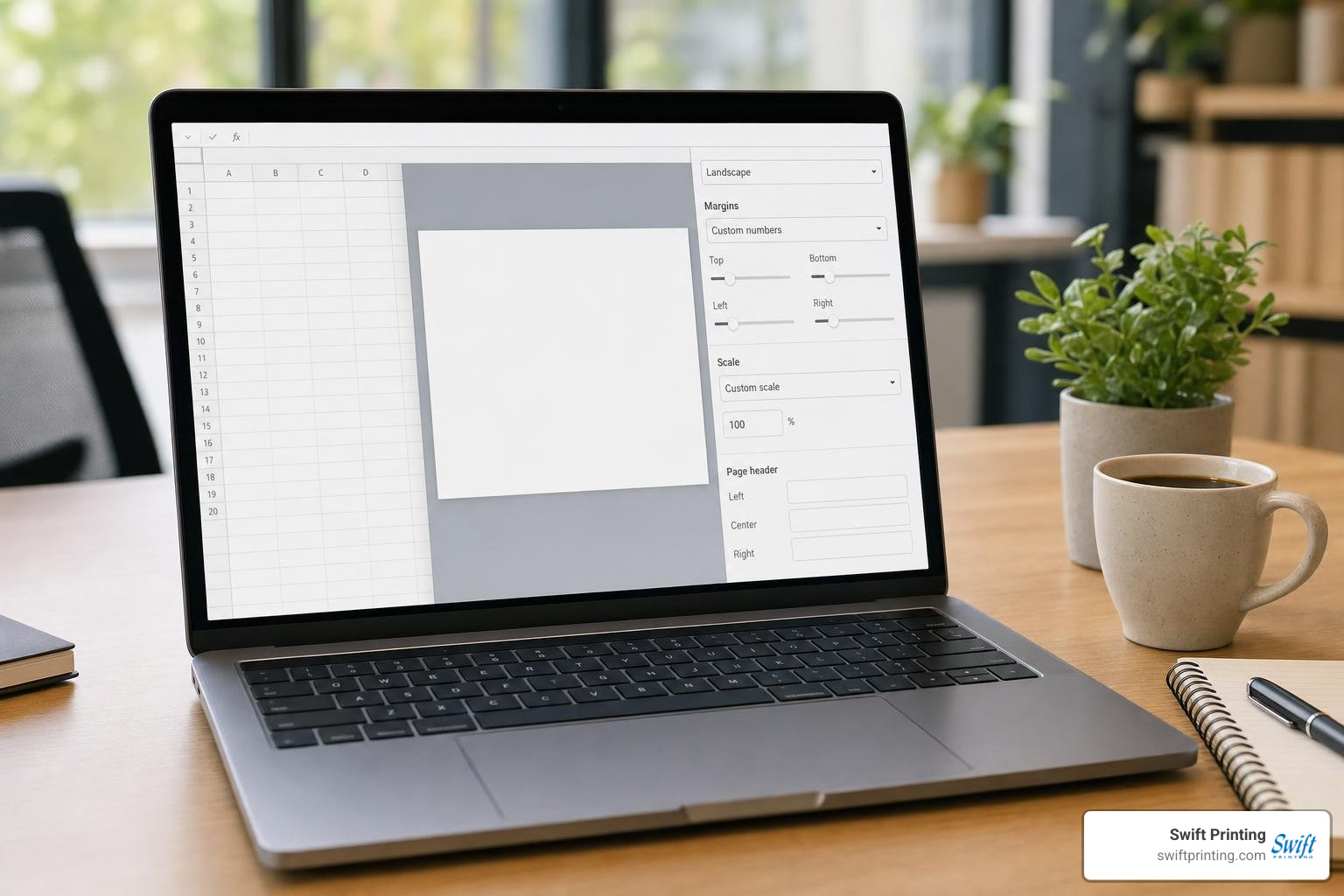
Managing Permissions and Offline Real-Time Sync
To safeguard critical schedules against accidental formula deletion:
- Set Granular Permissions: Click Share, assign team members specific roles (Viewer, Commenter, or Editor), and use Data > Protect sheets and ranges to lock your formula header cells and control dropdowns while leaving event entry cells editable.
- Enable Offline Access: Enable offline capability in Google Drive settings. Changes made by traveling staff offline sync automatically once their device reconnects to the internet.
- Review Version History: Navigate to File > Version history > See version history to audit changes, track who updated specific deadlines, or roll back formatting adjustments at any time.
Preparing Your Calendar Layout for Flawless Printing
While digital spreadsheets excel at daily data tracking, physical calendars remain essential for boardroom walls, executive desks, municipal binder inserts, and clinical team stations.
To export a crisp, print-ready document from Google Sheets:
- Navigate to File > Print (or press
Ctrl + P/Cmd + P). - Set Orientation to Landscape for traditional monthly grids (or Portrait for list-style agendas).
- Under Scale, select Fit to page or Fit to width to prevent columns from spilling onto awkward secondary sheets.
- Under Formatting, uncheck Show grid lines if you have defined custom border weights, or keep it checked for a clean, uniform grid.
- In Headers & Footers, turn on the current date, sheet title, or page numbers for structured distribution.
When turning internal organizational spreadsheets into client-facing promotional desk calendars or bound corporate planners, proper file prep makes all the difference. Learn how to prepare a Canva file for the printer to ensure your branding, margins, and bleed settings translate seamlessly into high-resolution physical print.
Spreadsheets vs. Dedicated Calendar Applications
Understanding when to use Google Sheets versus dedicated calendar applications (such as Google Calendar, Apple Calendar, or Outlook) ensures your operational workflows remain efficient and frustration-free.
Use Google Sheets when your schedule directly impacts financial budgets, staffing models, production deliverables, or client-facing project dashboards. Use dedicated calendar apps when your primary need is two-way meeting invites, automated email reminders, and personal push notifications across mobile devices.
Frequently Asked Questions About Google Sheets Calendars
How do I make my calendar automatically update when changing the month or year?
You can make your calendar update automatically by linking your grid generation formula directly to dynamic control cells. When you use =SEQUENCE(6, 7, DATE($B$1, $B$2, 1) - WEEKDAY(DATE($B$1, $B$2, 1)) + 1, 1), changing the year in cell B1 or the month number in cell B2 immediately recalculates every date across your 42-cell array without any manual adjustments.
Can I view and edit my Google Sheets calendar without an internet connection?
Yes. Turn on offline mode in your Google Drive settings and install the Google Docs Offline extension in your browser. You can view, add events to, and edit your calendar offline; all changes will sync automatically across your team as soon as your device reconnects to the internet.
How do I hide dates that belong to the previous or next month in the grid?
Rather than deleting spillover dates—which breaks underlying calendar formulas—apply a conditional formatting rule. Highlight your calendar grid, choose Custom formula is, and enter =MONTH(A5)<>$B$2 (assuming A5 is the top-left date cell and B2 contains your active month number). Set the text color to pure white or very light gray so out-of-month dates blend seamlessly into the background.
Conclusion
Mastering a spreadsheet calendar gives your team a collaborative planning hub that balances structure with complete design flexibility. When paired with dynamic formulas, automated event logs, and conditional styling, Google Sheets becomes far more than a basic table—it transforms into an indispensable command center for managing complex organizational timelines.
When your digital milestones are set and it is time to turn executive schedules, corporate wall planners, donor calendars, or direct mailings into tangible marketing pieces, working with a seasoned print partner ensures exceptional execution. Swift Printing is a high end print shop based in Grand Rapids, Michigan. As one of only two Certified B Corporations worldwide offering full-service commercial printing, we balance precision craftsmanship with an unwavering commitment to our community and planet.
Whether you are preparing corporate schedules, specialty stationery, or formatting a spreadsheet for a mailing, our team is ready to bring your project to life with premium papers, custom bindery, and dependable service. Reach out to Swift Printing today to discuss your next custom print run!