As social media sites become more and more the norm, Linktrees are becoming very popular.
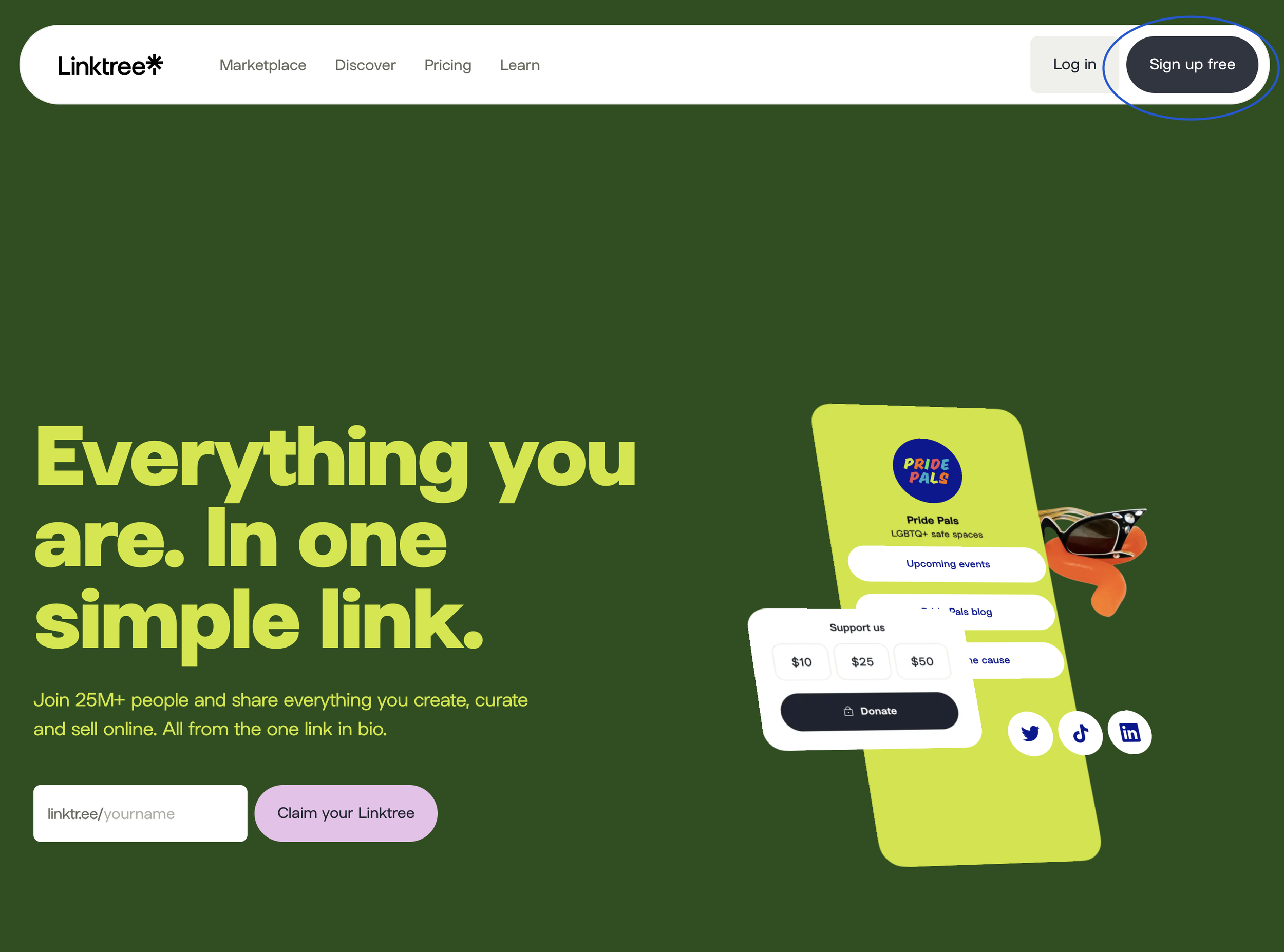
First go to the LinkTree website. Click Sign up.
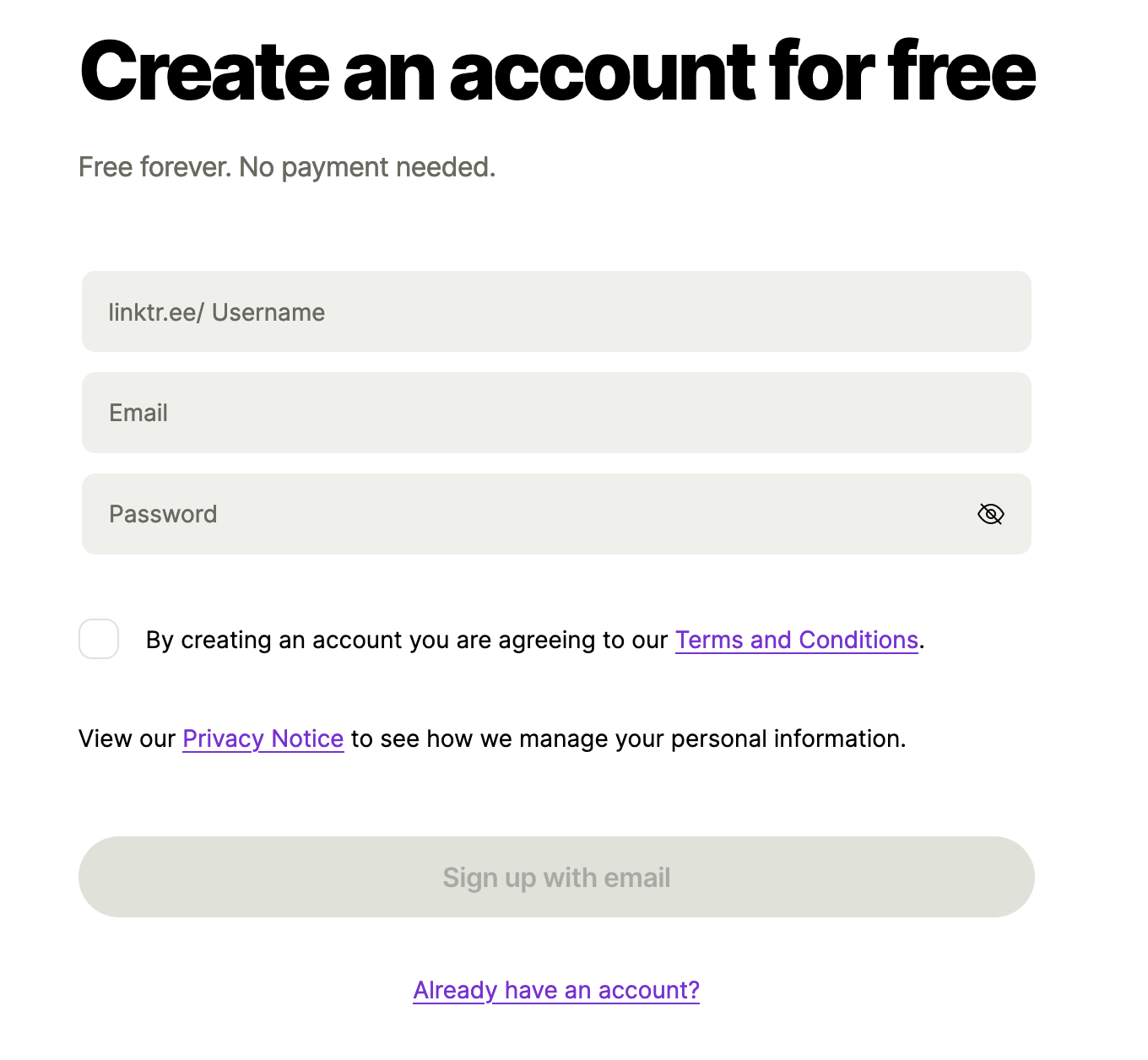
Enter in the username, email, and password. The username will be what the end of your URL is and what people will see when they navigate to it.
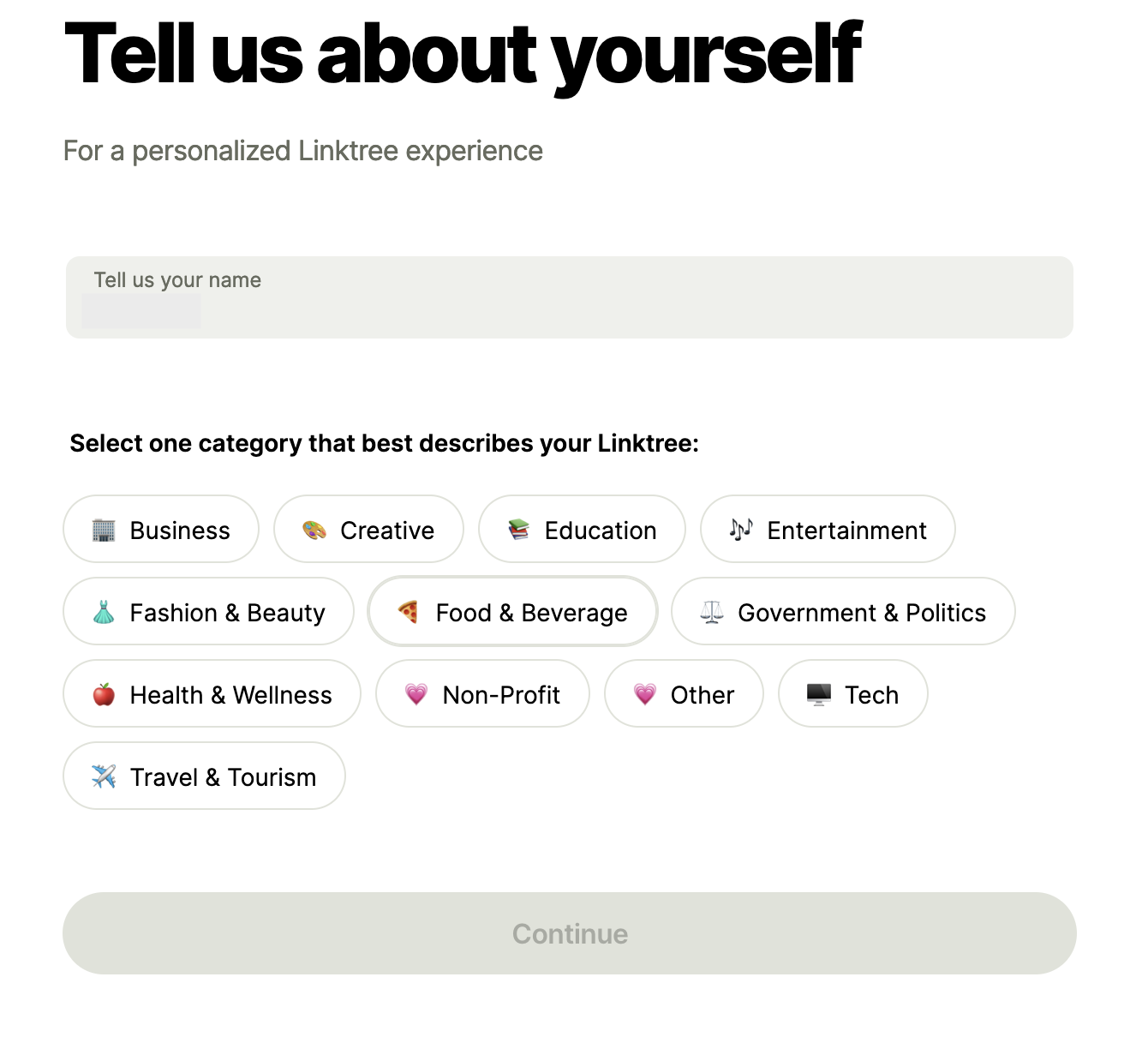
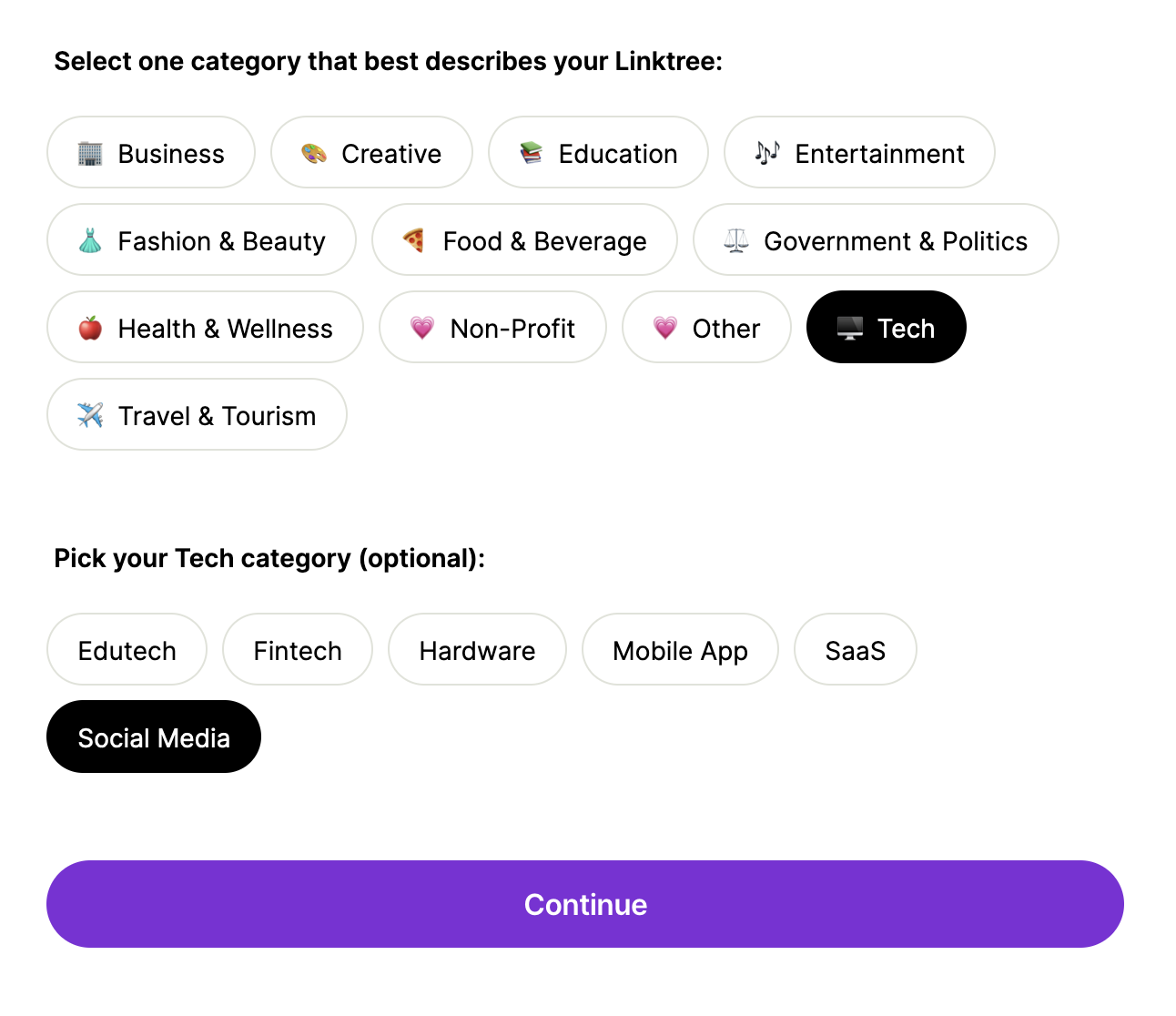
Next, enter your name and select what you intend to use the linktree for. An approximation is fine.
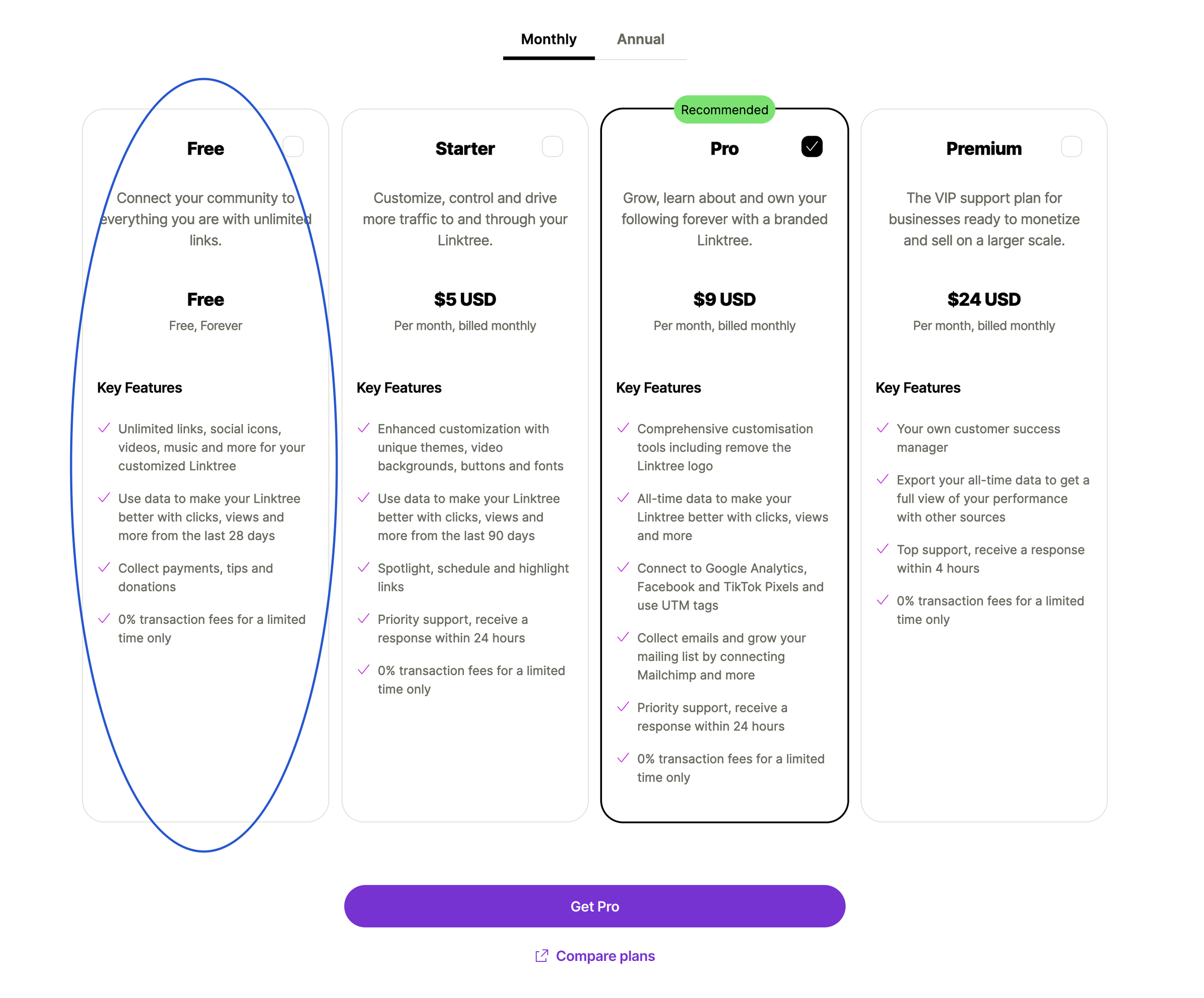
After you hit continue, it will ask you what tier you want. For the purpose of this demo I will be showing you the free tier along with the options available.
It will send an email to you for confirmation. It is best to go and confirm right away so you don’t forget. (I forget all the time!)
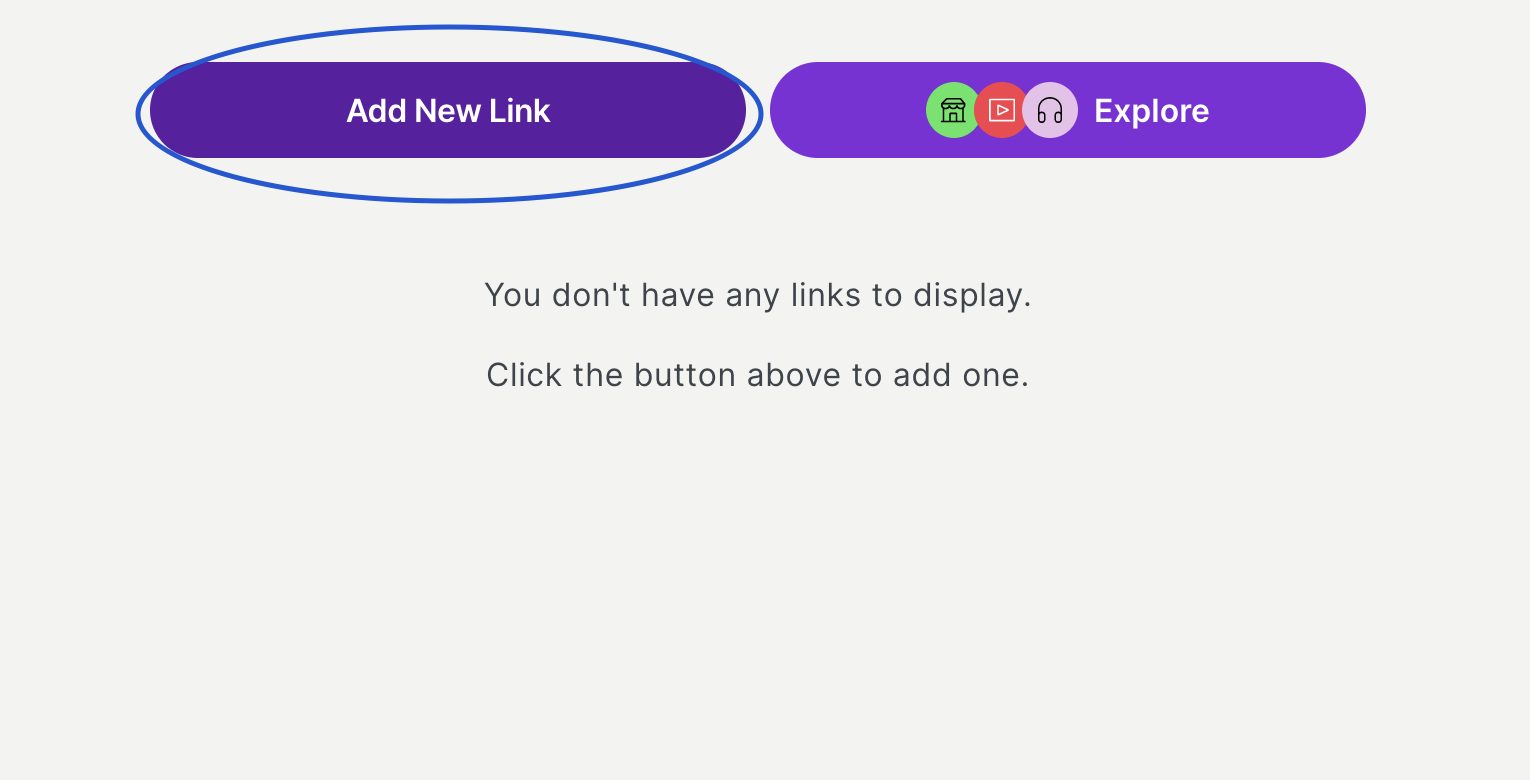
Once you confirm, go to your “Admin” page on linktree and click, “Add Link”
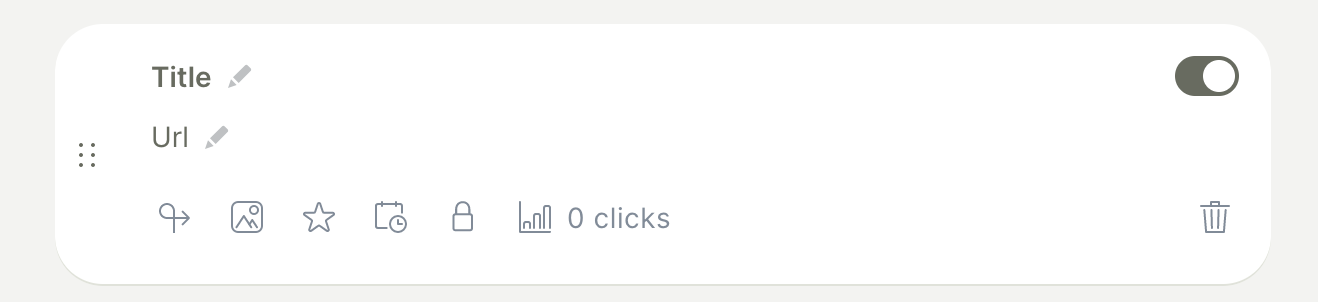
It will look like this. The title is how you want it to appear on your tree. The URL is where to direct people. You can use the slide button on the upper right to toggle the link on and off if you would like to deactivate it at any point.
You don’t have to put regular social media links in here (facebook, instagram, etc); I’ll show you how to add those in just a second.
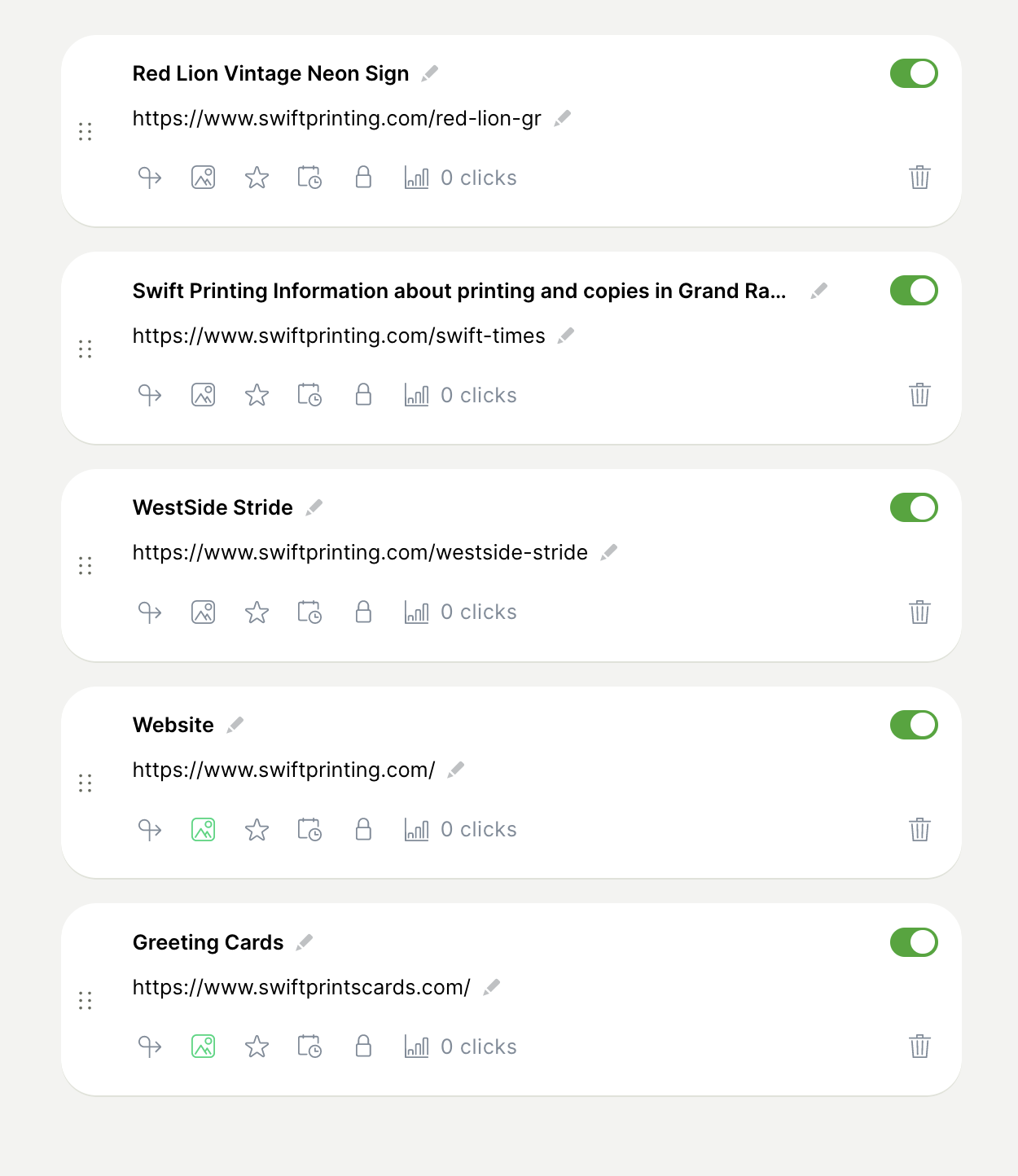
Once you have your links set up the page will look something like this
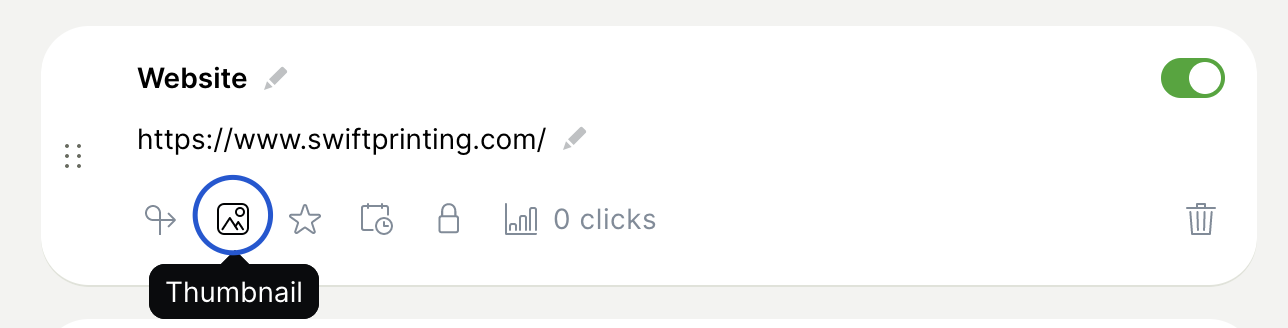
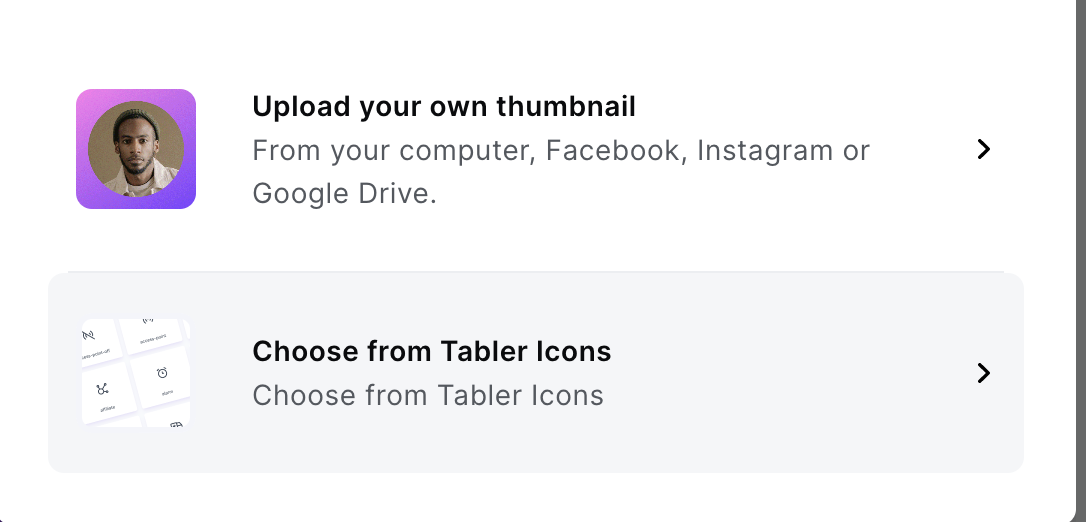
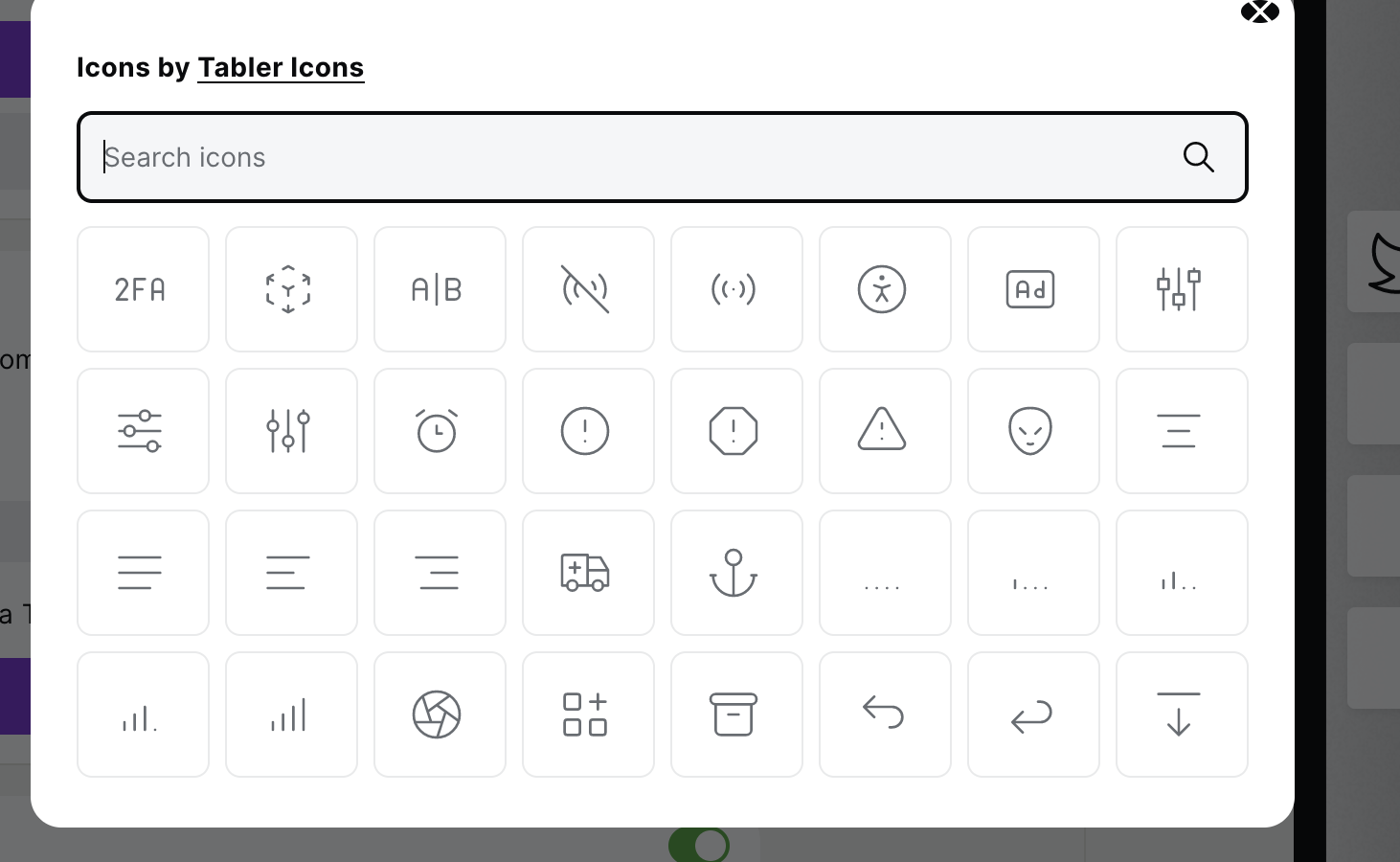
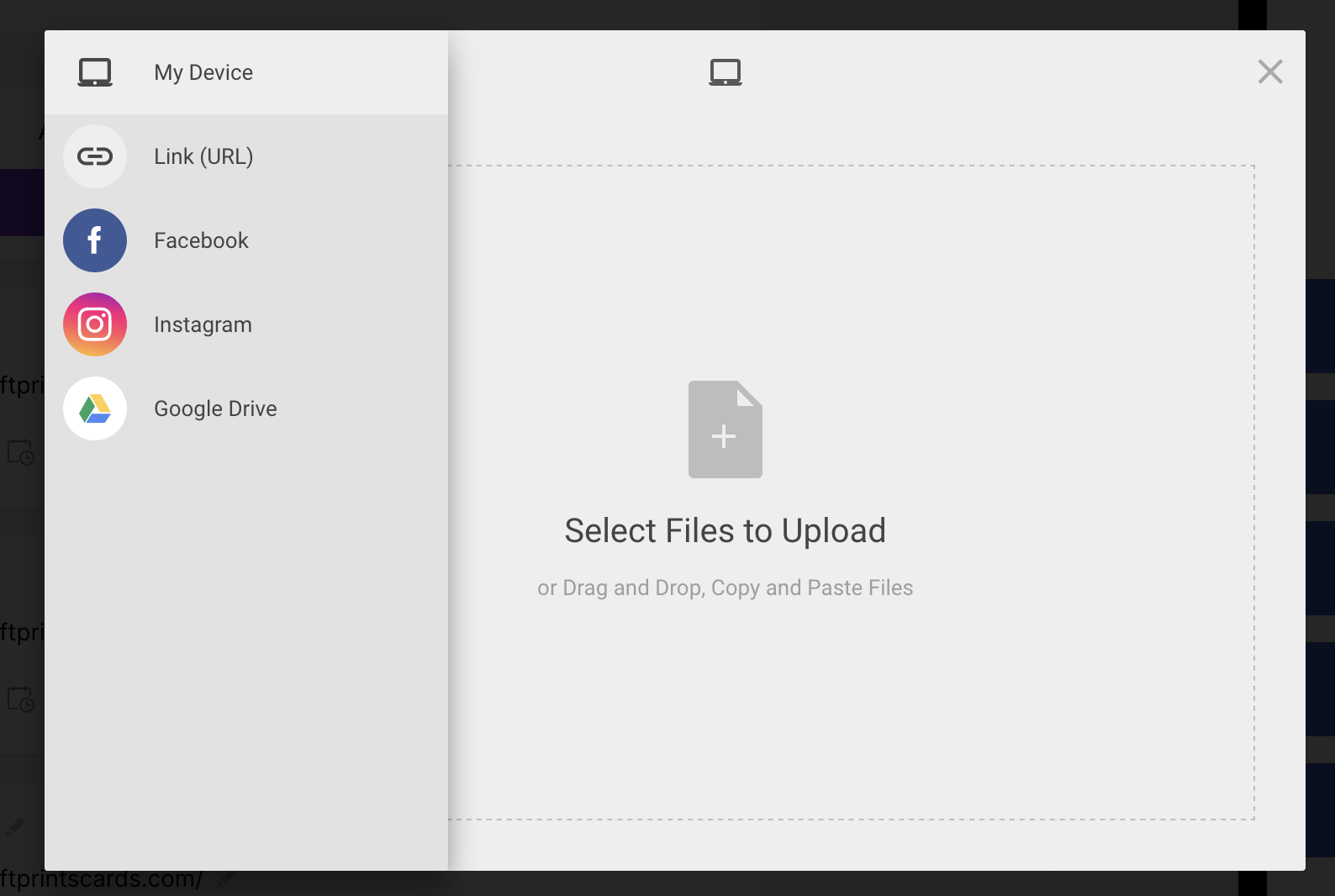
If you would like to set a thumbnail image for any link, click the thumbnail button. You can optionally upload your own image (make sure it is a square or can be cropped down to be a square!) or select from the list of icons.
Now that we have those links set up, let’s do the social media ones. Navigate to “settings” found on the top bar.

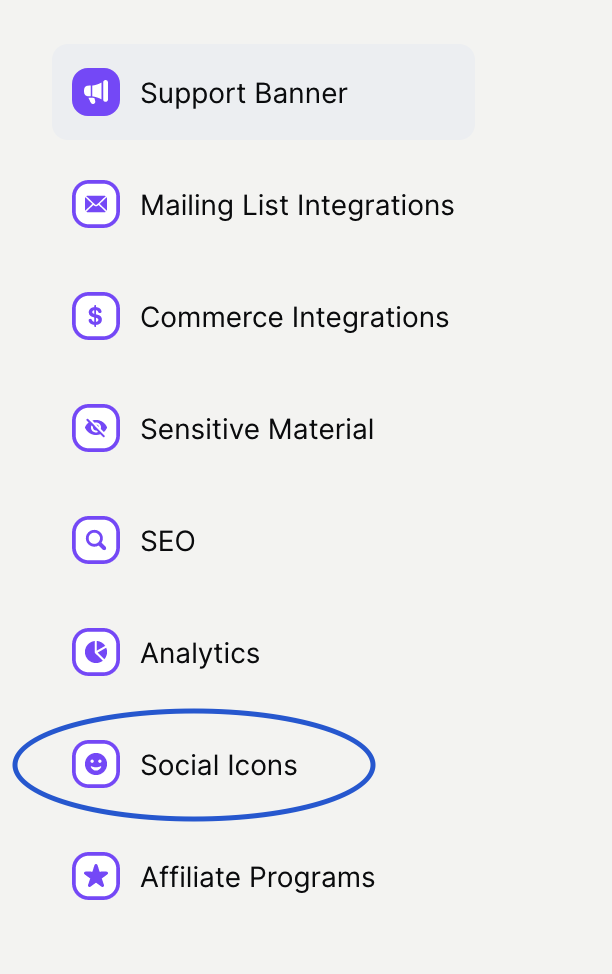
On this page there are a number of different options, but let’s first go to “Social Icons”
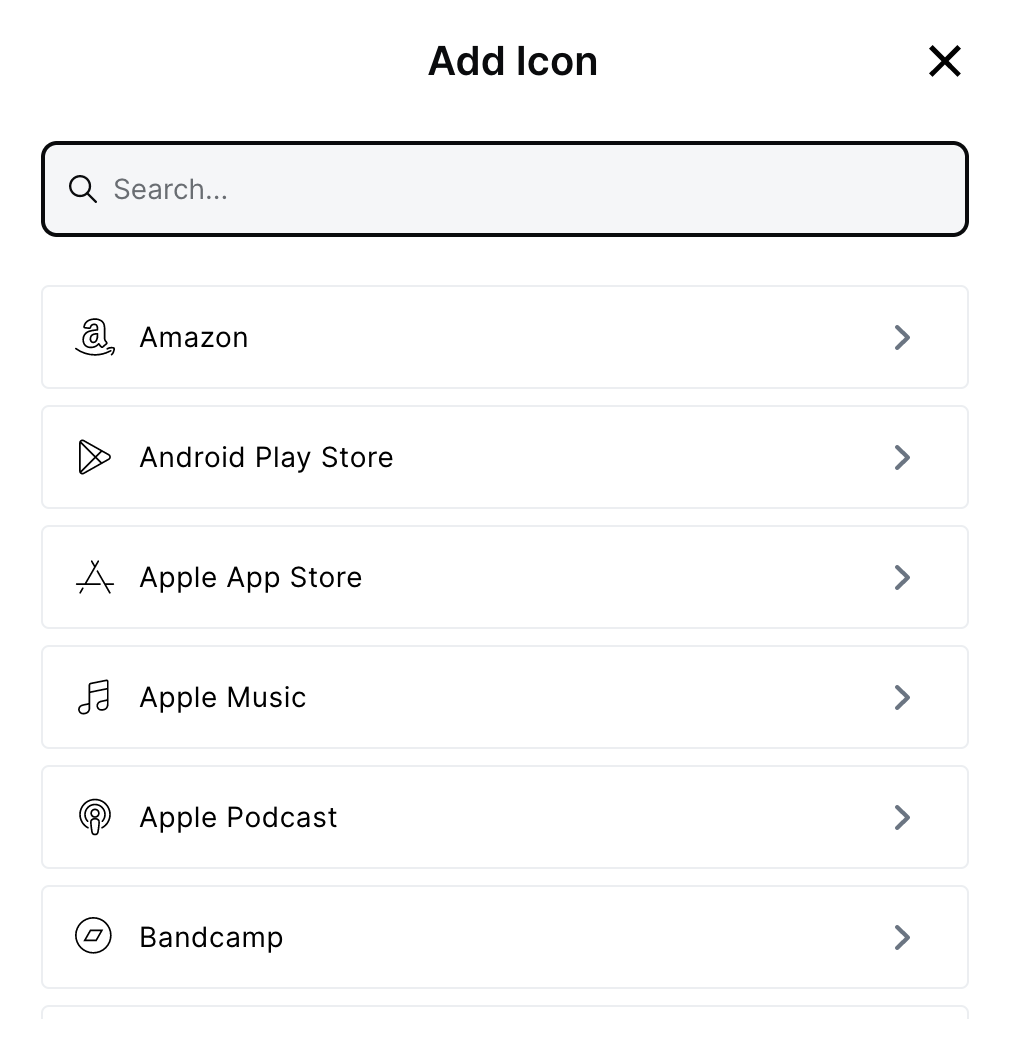
You will click the “Add Icon” button then search from the list of availible social media sites. They have quite a number to choose from including: Facebook, Twitter, Instagram, Discord, TikTok, Etsy, Twitch, Spotify, Youtube, and more!
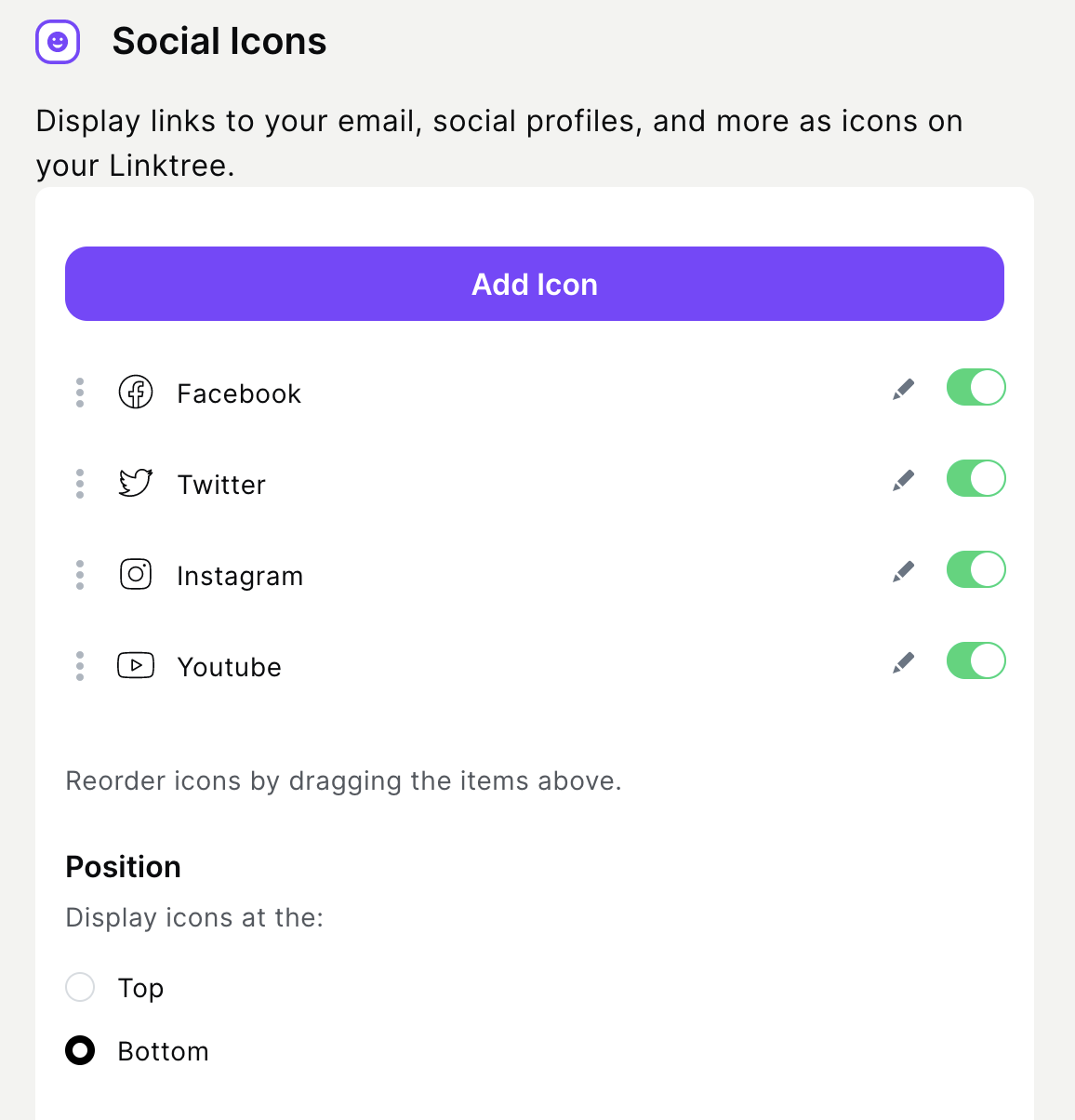
Once you have them set up it should look a little something like this. You can choose the social links to be at the top or bottom of your tree. You can also toggle various ones if needed.
Now that we have all of our links set up, let’s go and edit the appearance of our tree.

At the very top you are able to set your profile image, linktree title, and description.
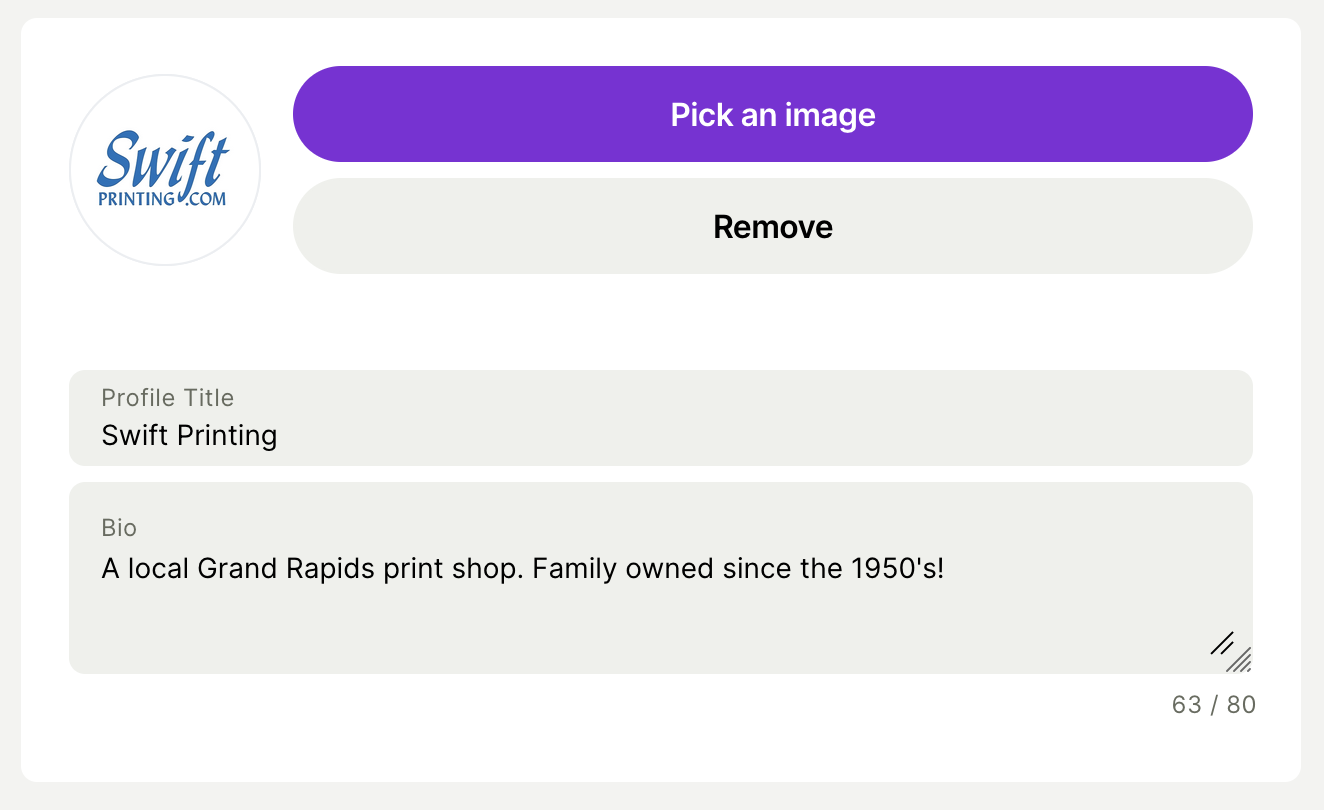
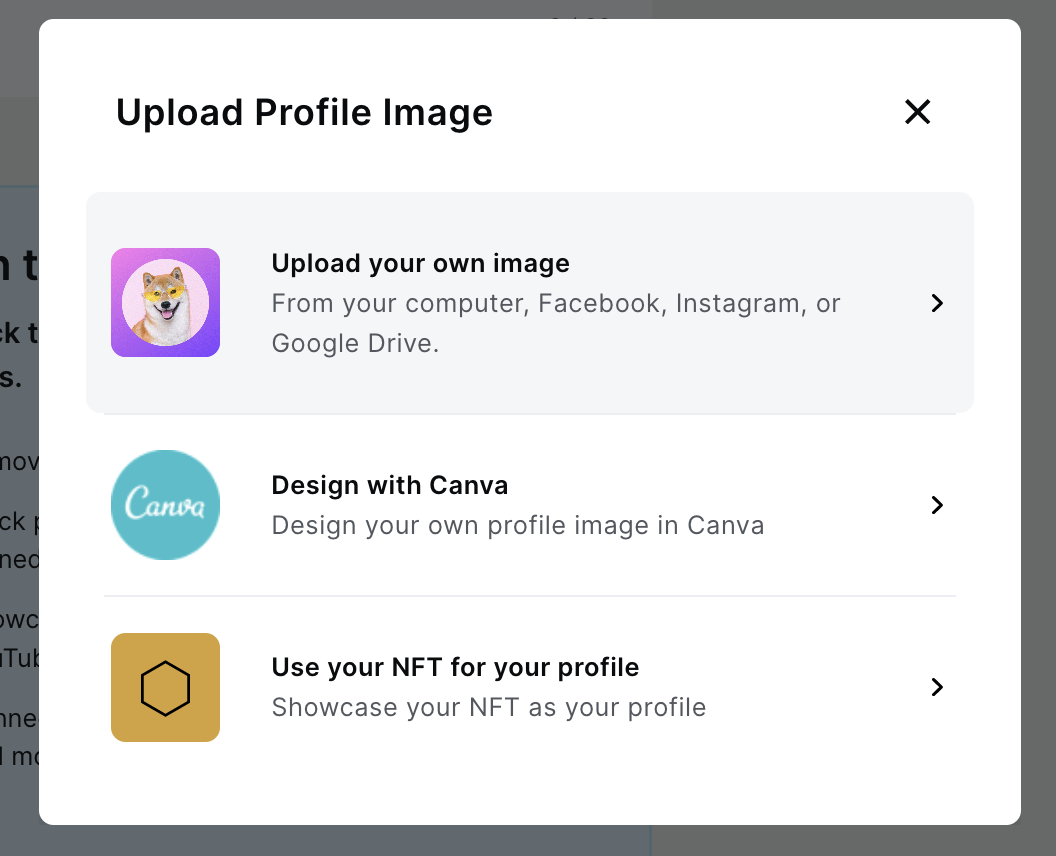
When you upload a profile image you can select one from your device, connect to canva and design an image or logo.
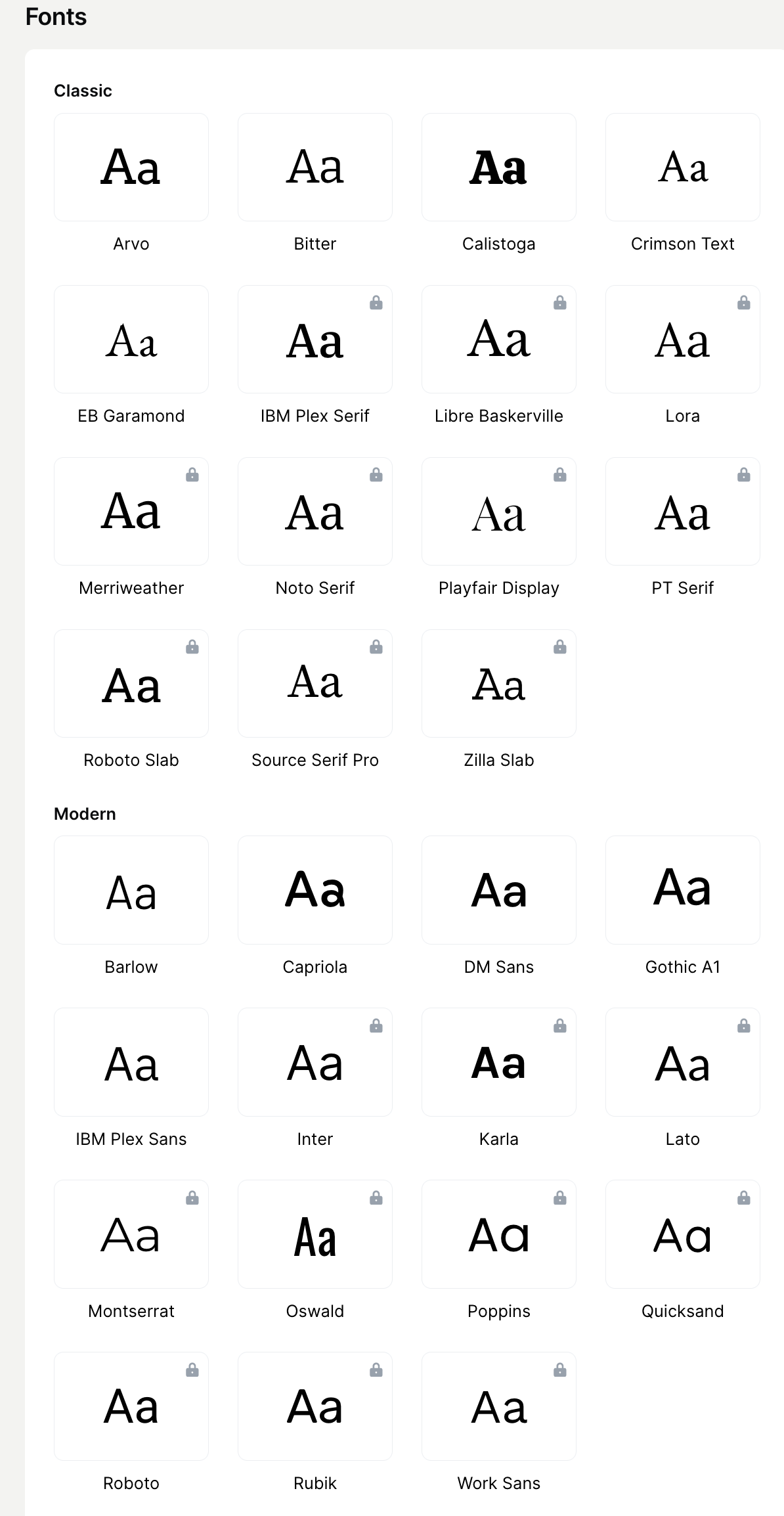
A little further down, free members can also select from a limited number of pre-made templates or use assets to make a custom view.

Premade templates availible
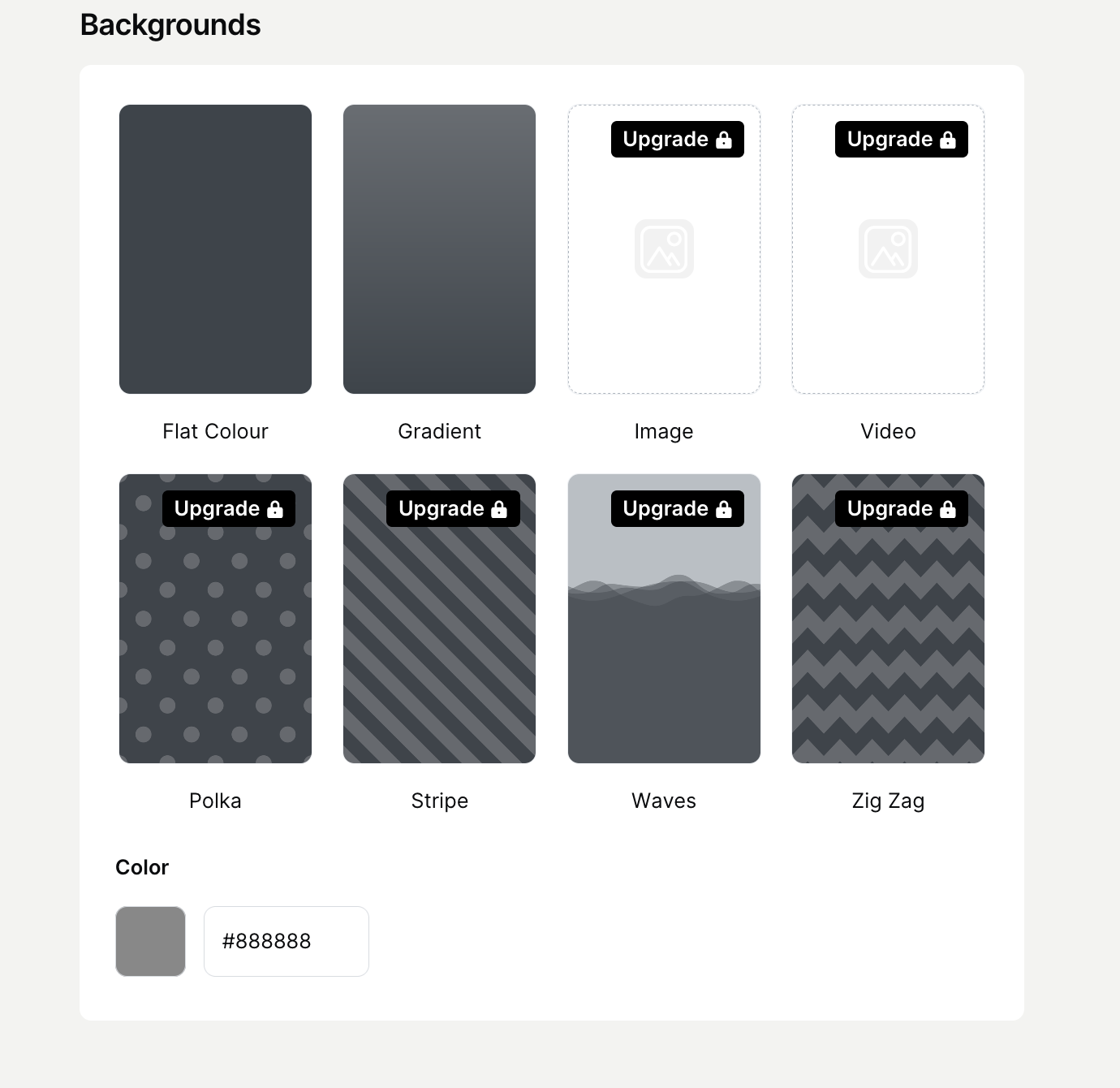
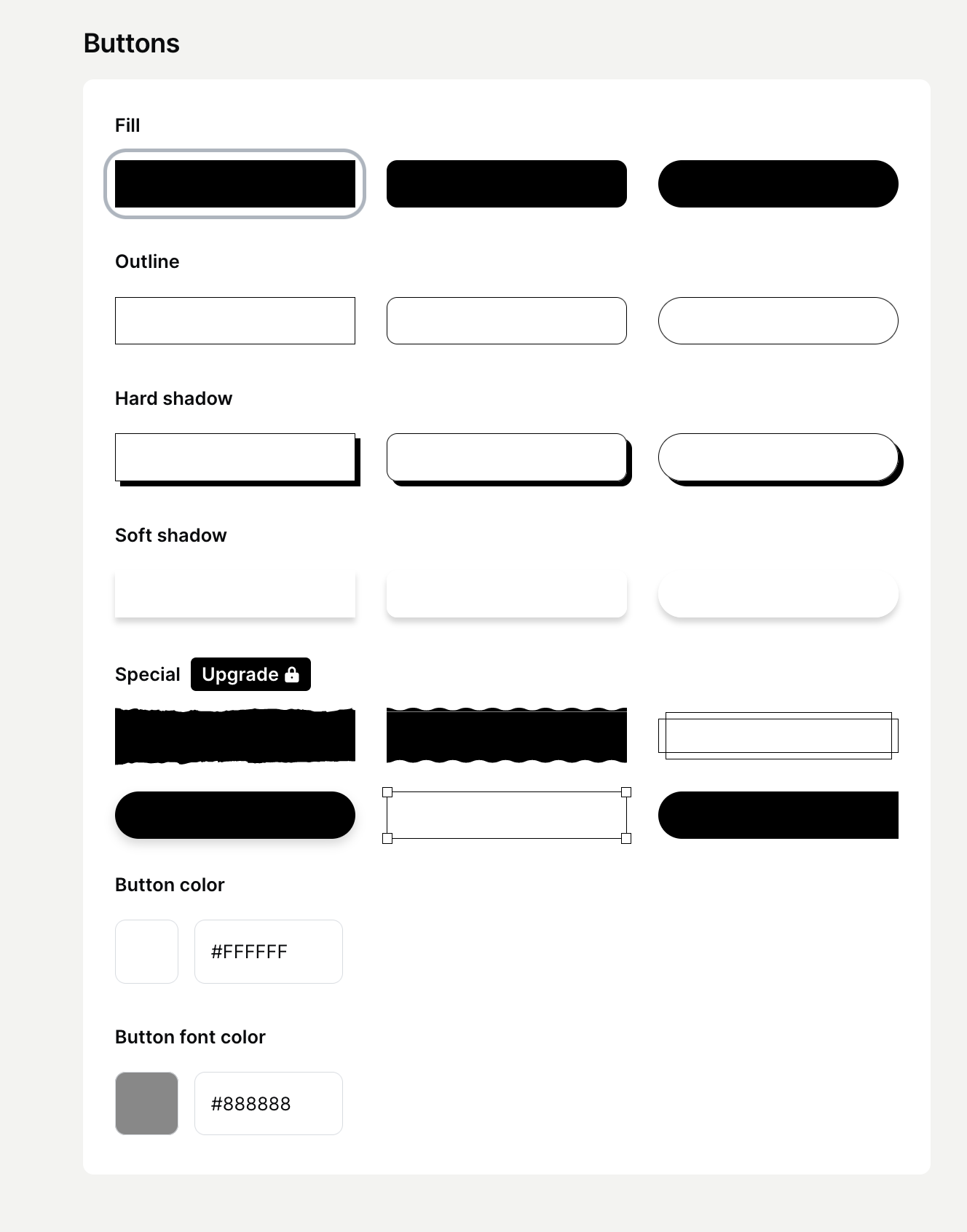
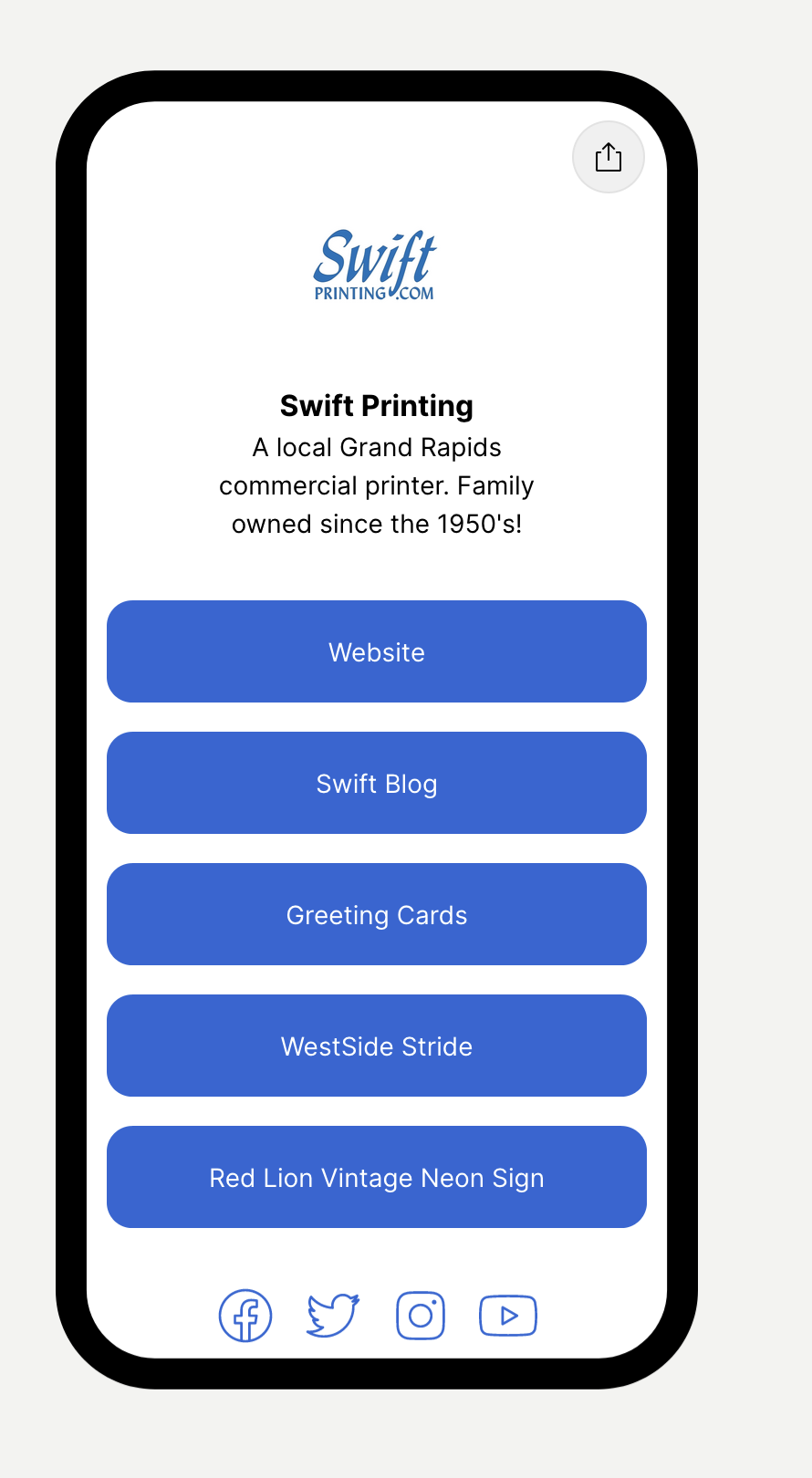
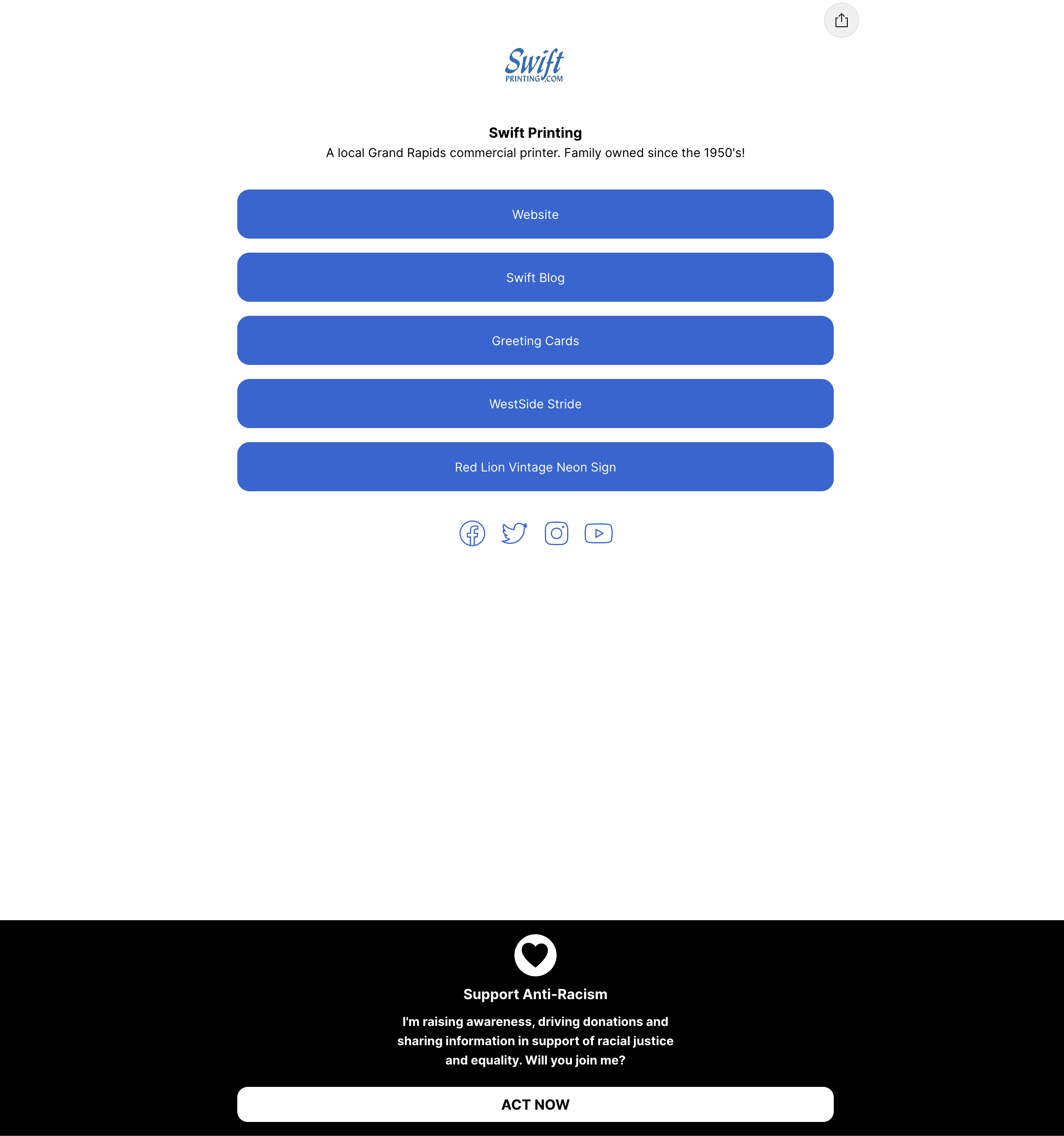
This page will give you a preview of what your tree will look like on a mobile device. You can also click your linktree link on the top right of the page and preview what it looks like on a desktop.

Other Options
There are some other options you may be interested in depending on the function of your tree. If we go back to settings we can explore that page a little more.
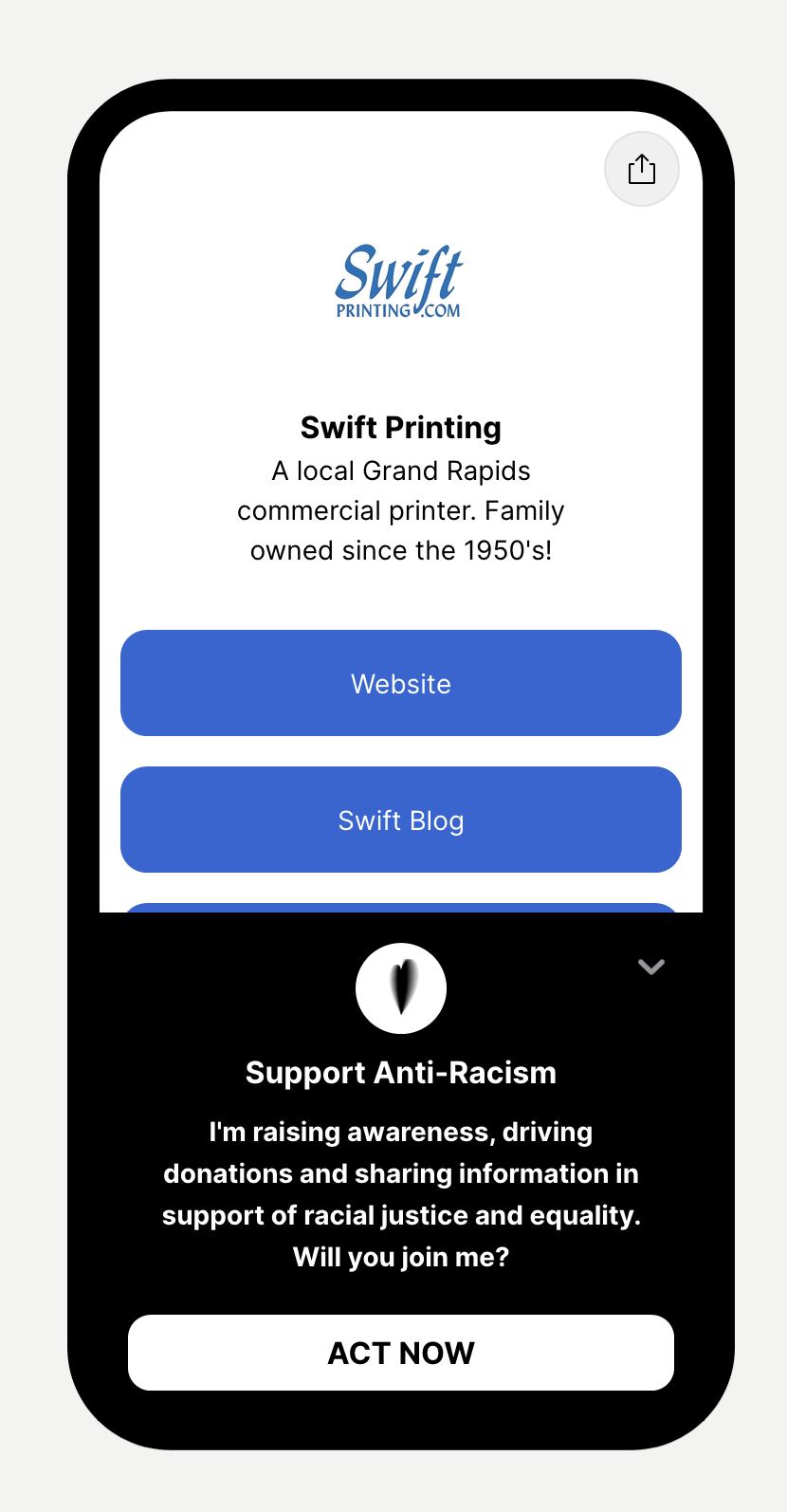
One option is a support banner. At the time of writing this article, there are two issues you can support availible: #StandWithUkraine and Anti-Racism. You can only have one support banner activated at a time.

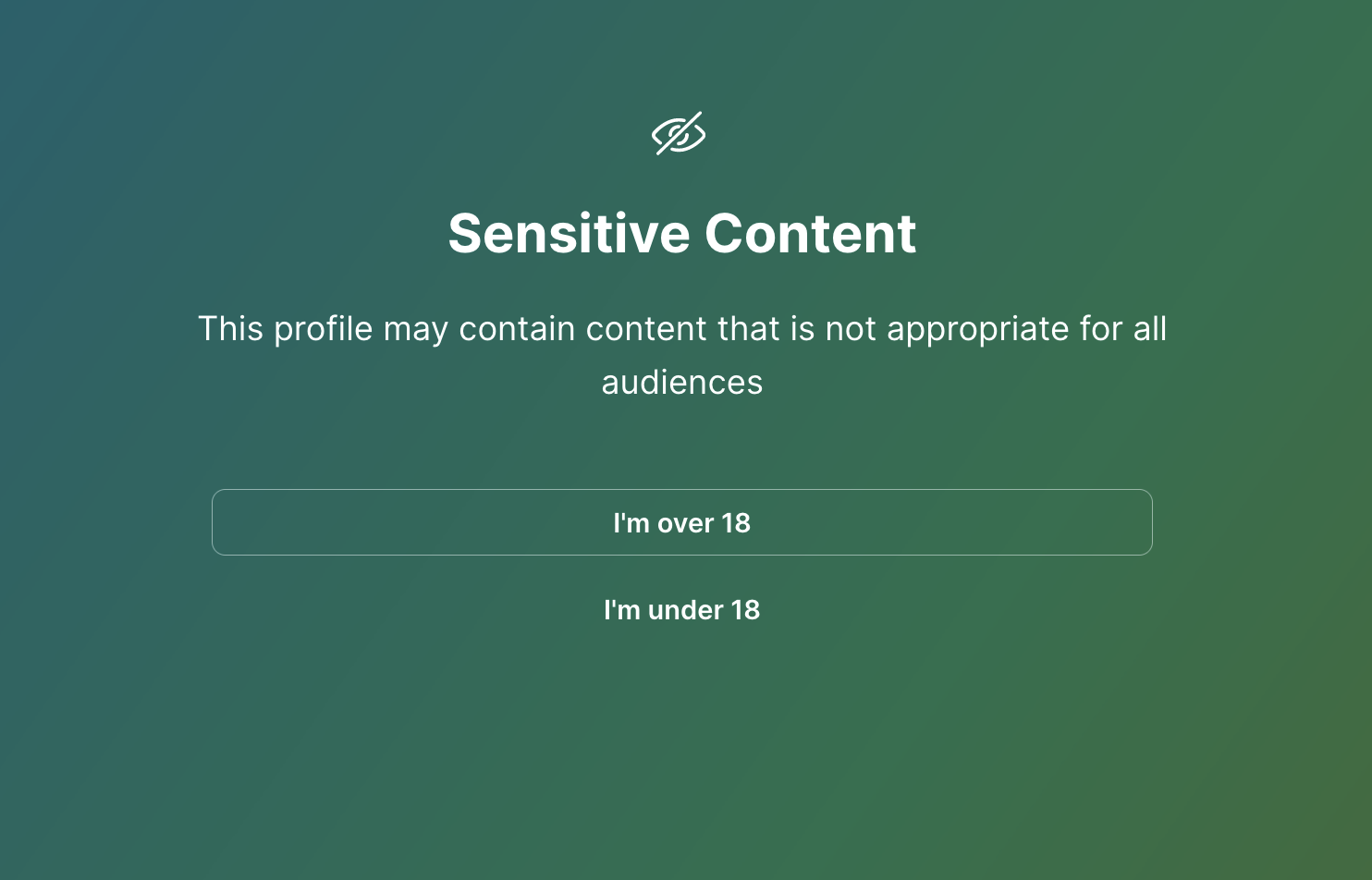
You are also able to lock access to your tree based upon certain criteria such as age.

Here is what it looks like if you restrict by age
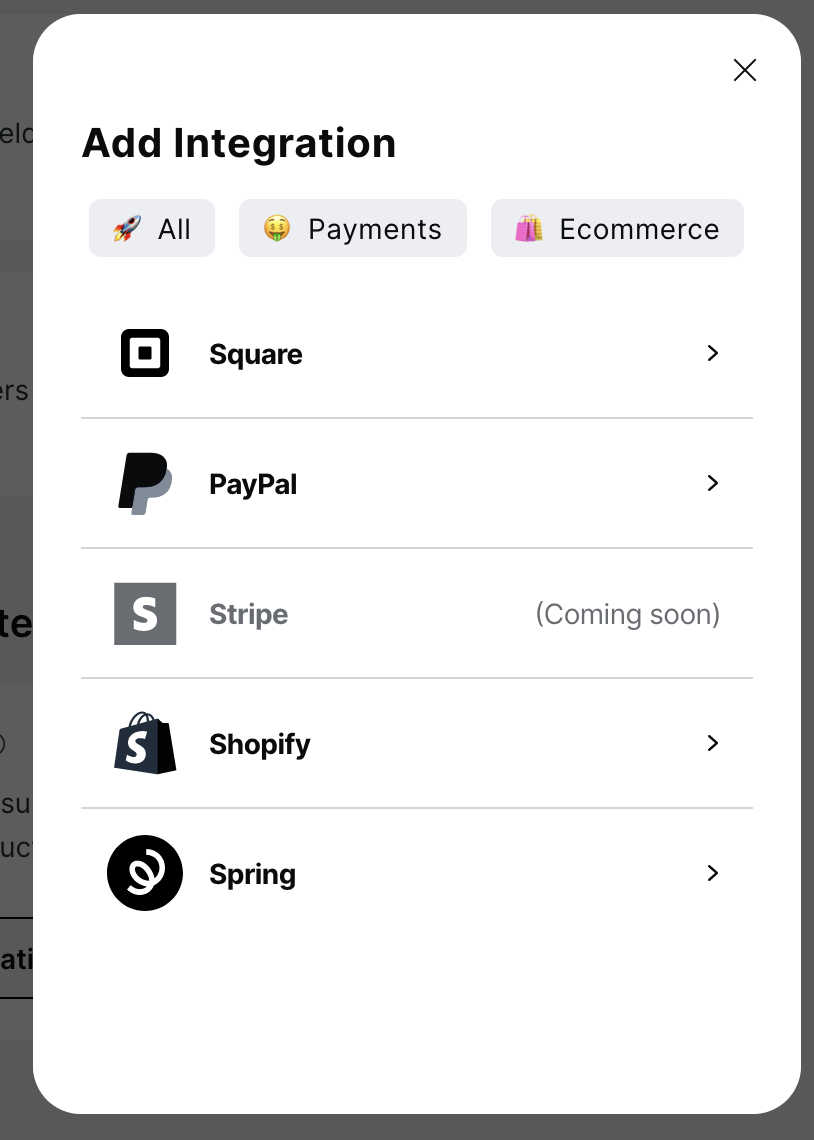
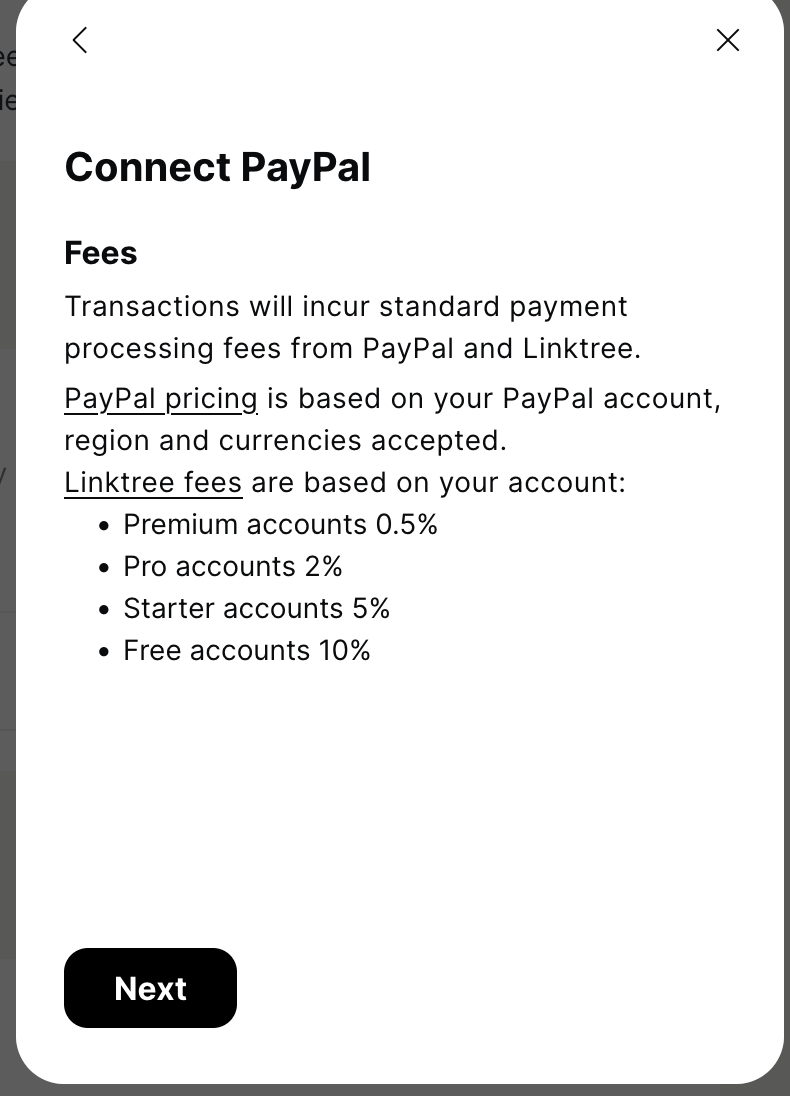
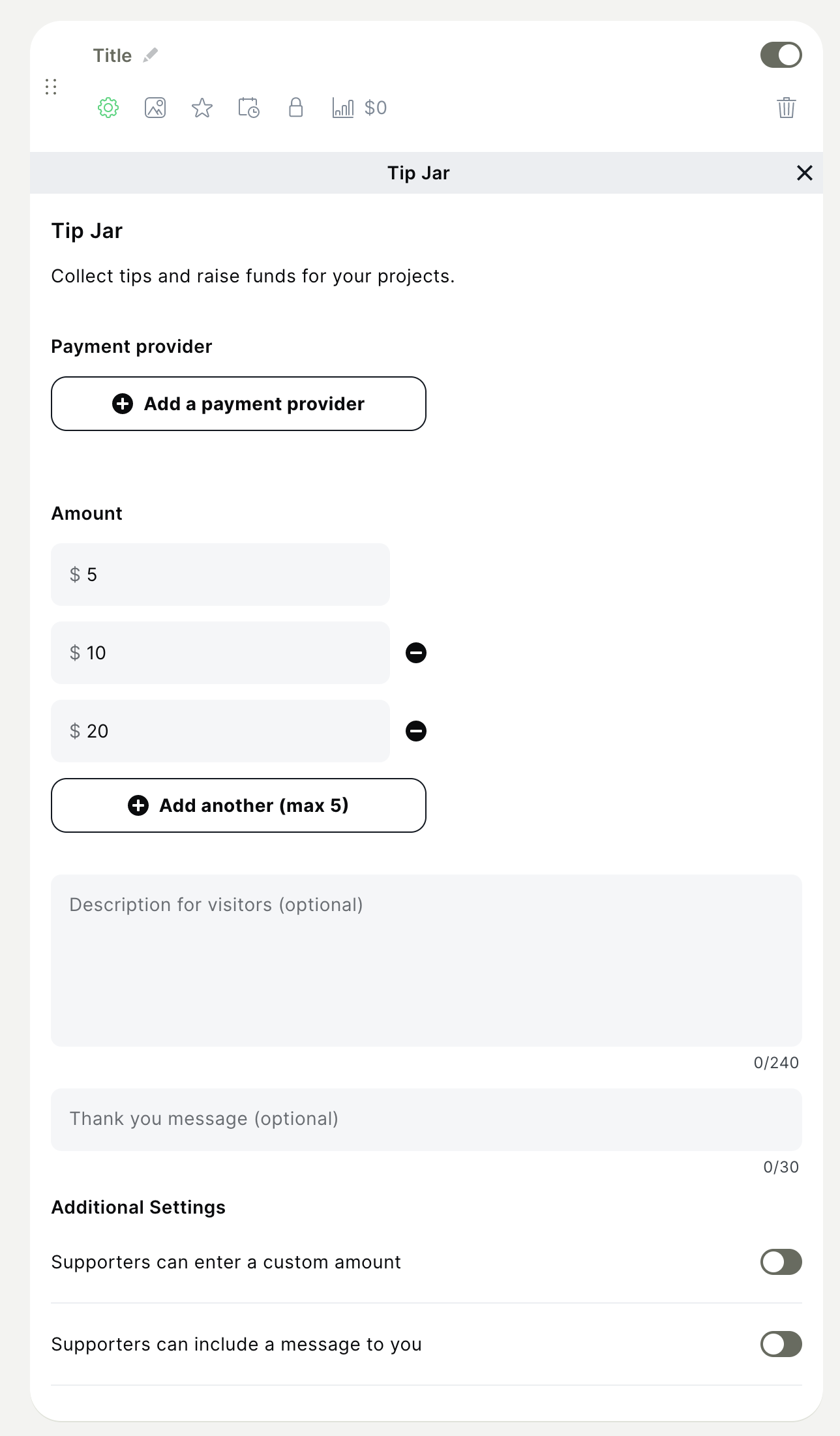
You can also collect tips or payments with your link tree by connecting Square or PayPal (Stripe integration coming soon!) There are fees for each transaction to be aware of, so keep that in mind. You can have a predetermined payment amount or allow custom amounts.
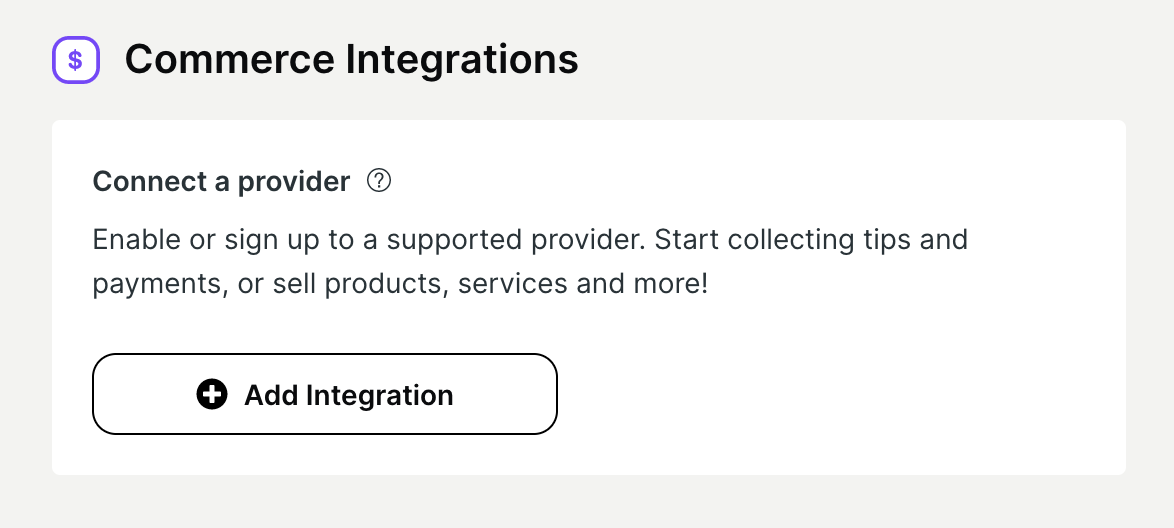
You can add the tip jar if you go back out to your main links page. You can set up your payment account either in settings as previously shown or when you add the tip jar link. Another option is to add a request button in which visitors can request a certain task from you and prepay for it. Example: A cover of a song or a commissioned image.
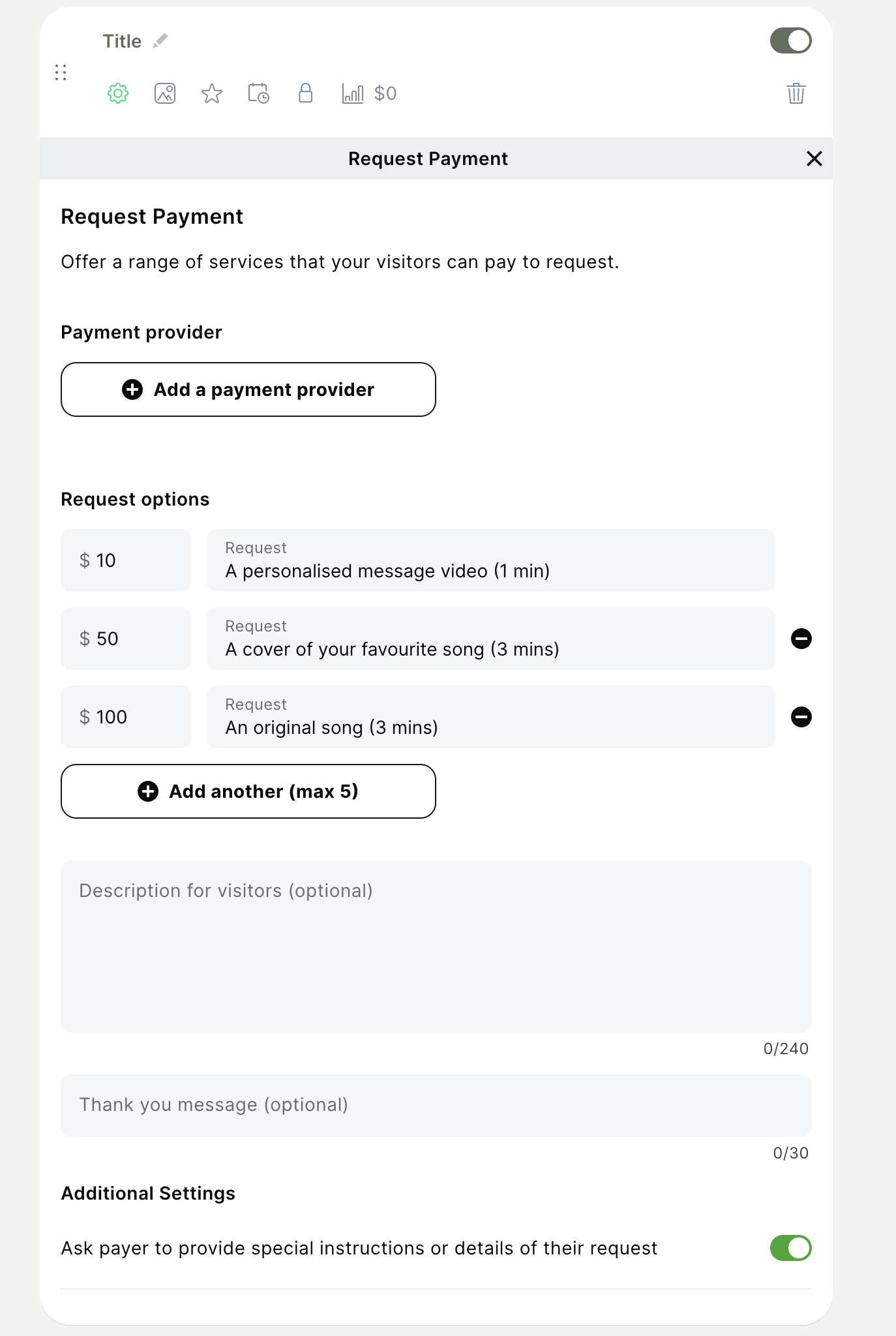
There are a myriad of other things you can add, not all of which we are covering in this tutorial. You can add a storefront integration with Shopify and Spring, you can show your Spotify and others can see what you’re listening to, upload a PDF so visitors can download it, integrations with Pintrest and YouTube to show your boards, pins, and videos in a list view on the page, and more!
In this age of dozens of existing social media sites, Linktree makes your list of links easy to read, easy to understand, and easy to use. Still have questions? Visit LinkTree’s Help Center for more details and tutorials.
Swift Printing is not affiliated with LinkTree