These days there are endless websites available to create QR codes. For this tutorial I’m going to be focusing on using QR code monkey. It is free, easy to use, customizable, and even has an API available for those who might need it. Not all features are free- I’ll mention them as they come up, but a majority of choices are free. (Psst, if you want to use Canva, go to the very bottom of this article where we touch on how to make it in Canva itself)
Right from the get go we have an easy landing page to start making our QR codes.
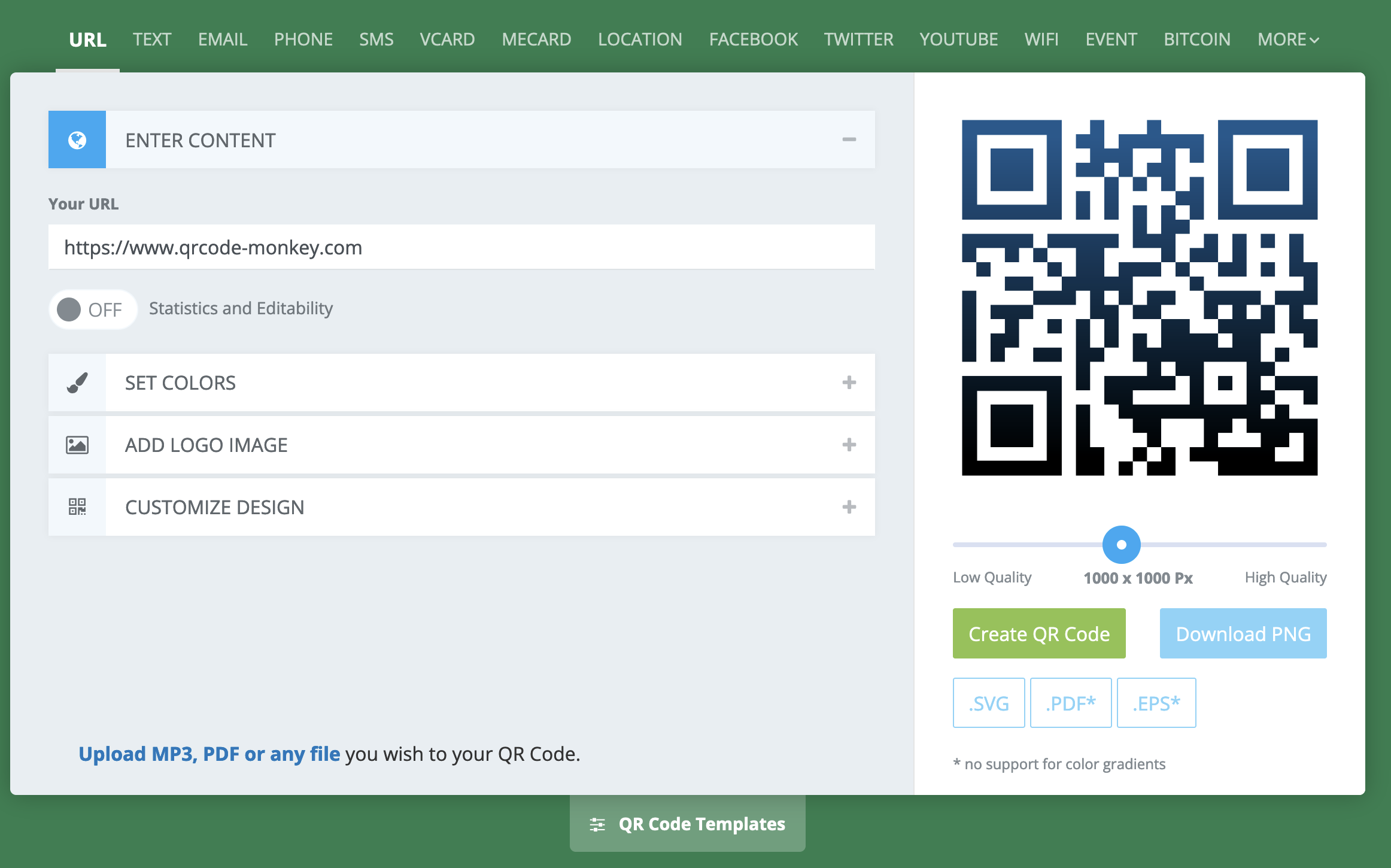
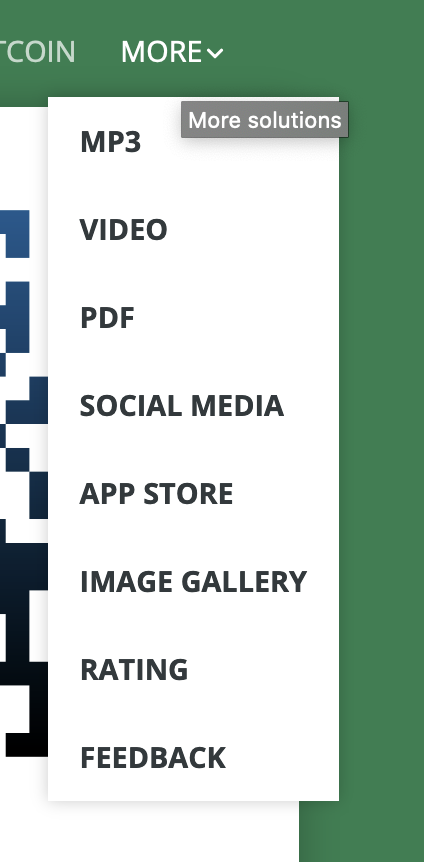
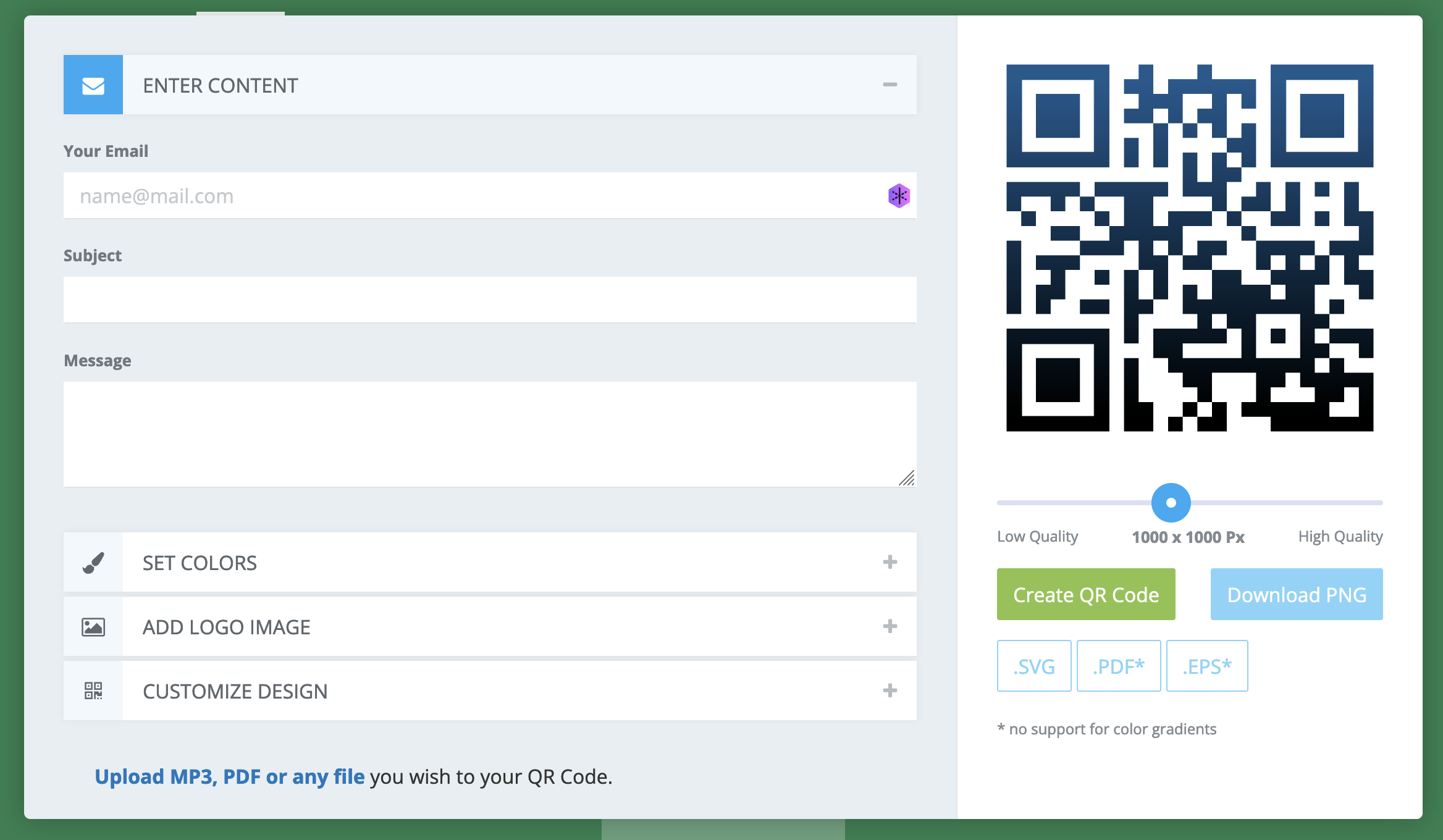
It defaults to URL, but there are premade templetes for a wide variety of uses. Everything on the top bar is free to use, but anything under the “more” drop down requires a pro membership.


At the bottom there is a link to the available layout templates.
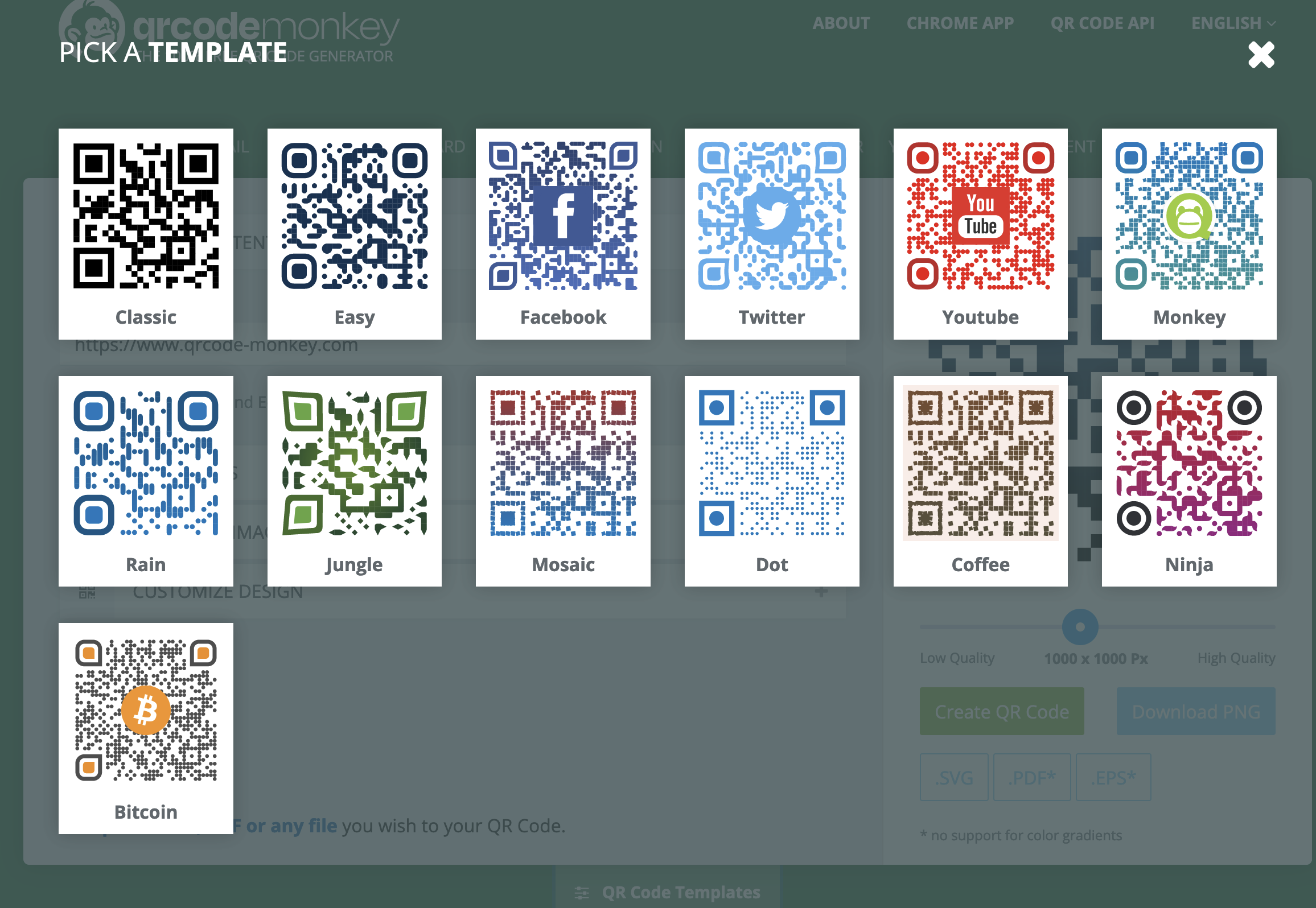
You can use one of these or you can use their options to make your own! Once you have the location of where the QR code will lead, the next option is to set the colors. Now, you’re going to want to make sure the colors you use are fairly dark as those will be able to be read more easily.
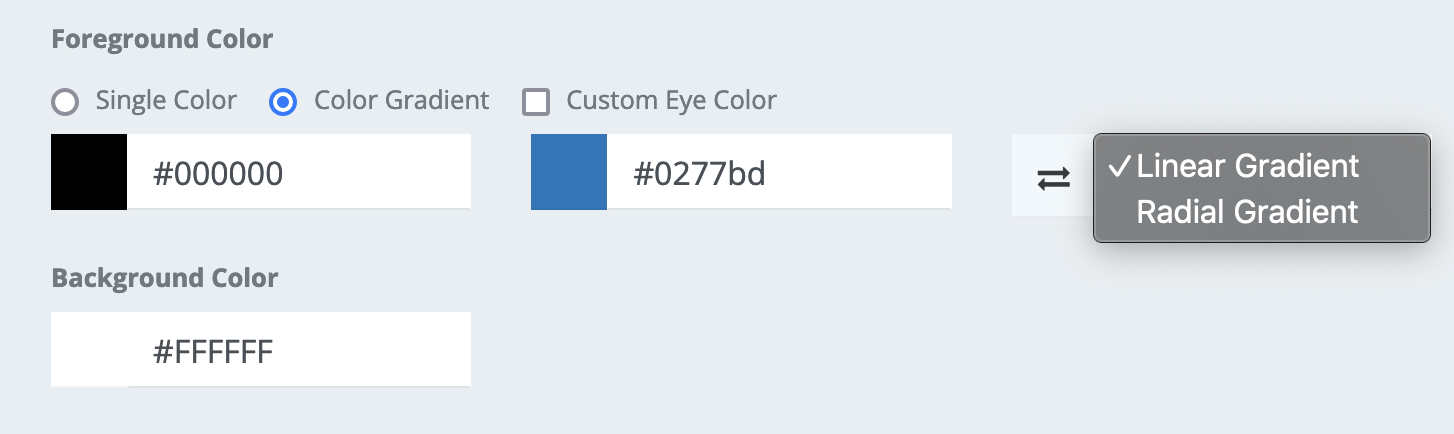
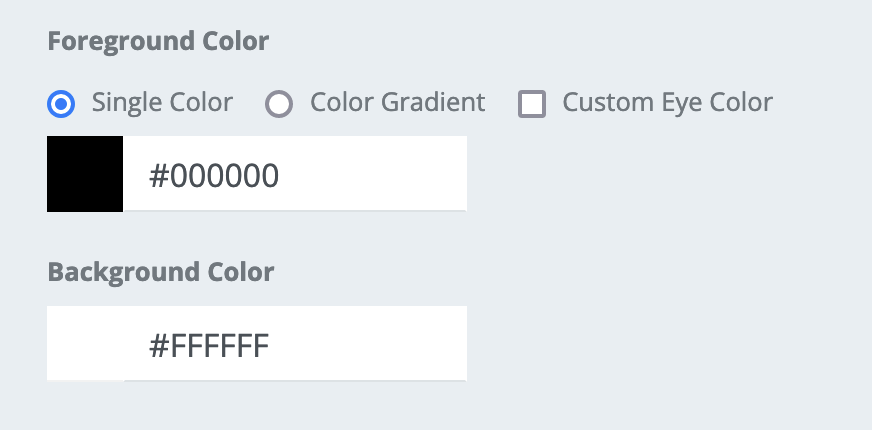
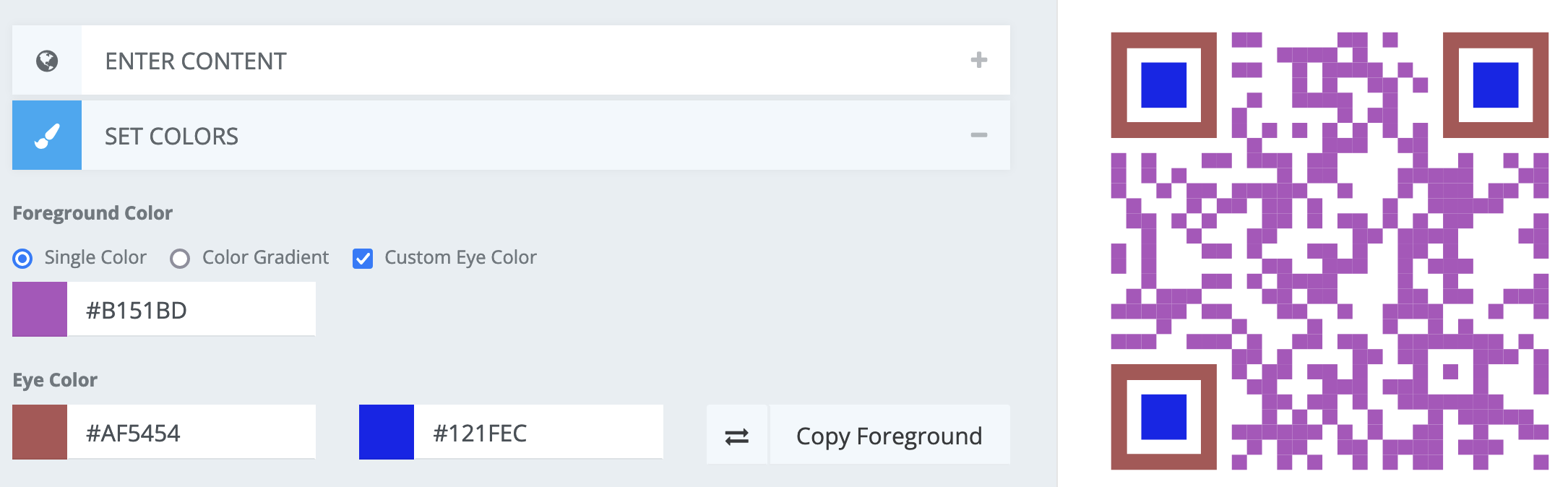
Here is what each color option corresponds to.
The next option is the Logo/image that will be in the center of the QR code. Uploading your own logo needs a pro membership, but they have common free ones available.
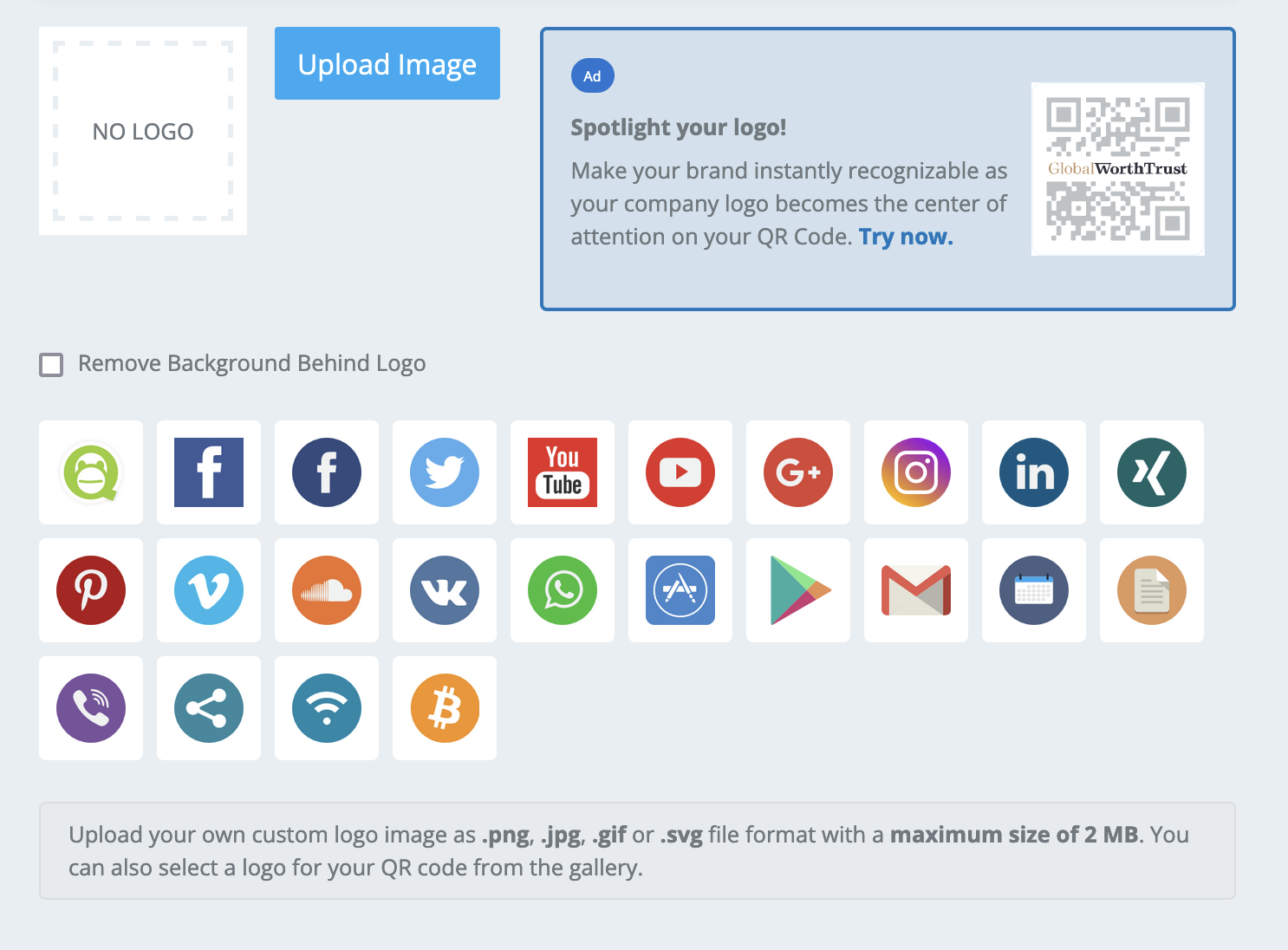
You can remove any white background from behind their logo options.
The next option is the customization of the layout of the QR code itself.
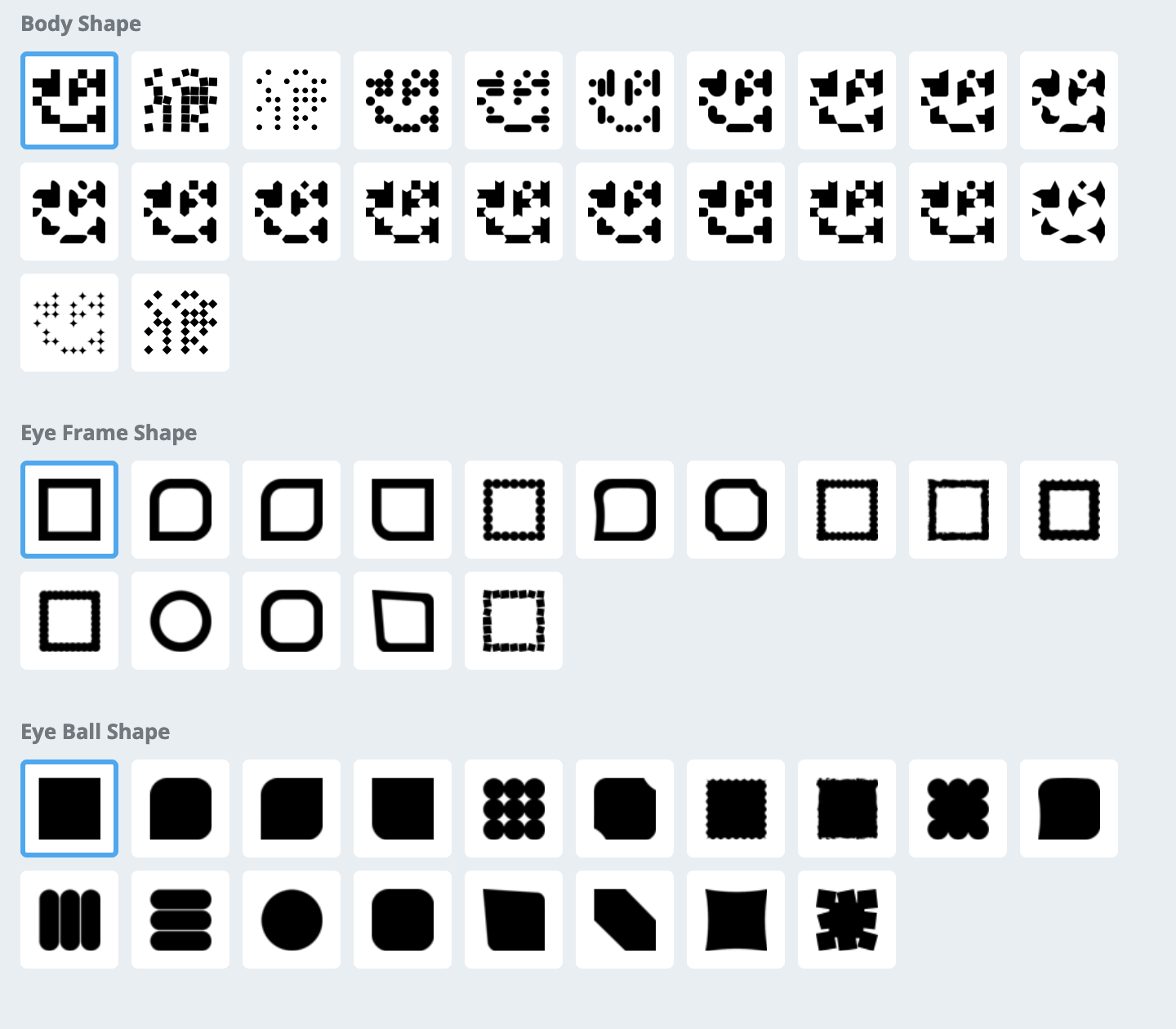
I will caution that sometimes the more unique body shapes can be a little hard for some older devices to read. If you want to ensure any phone can read it, I would encourage using one of the more basic options like squares or circles instead of some of the more jagged options.
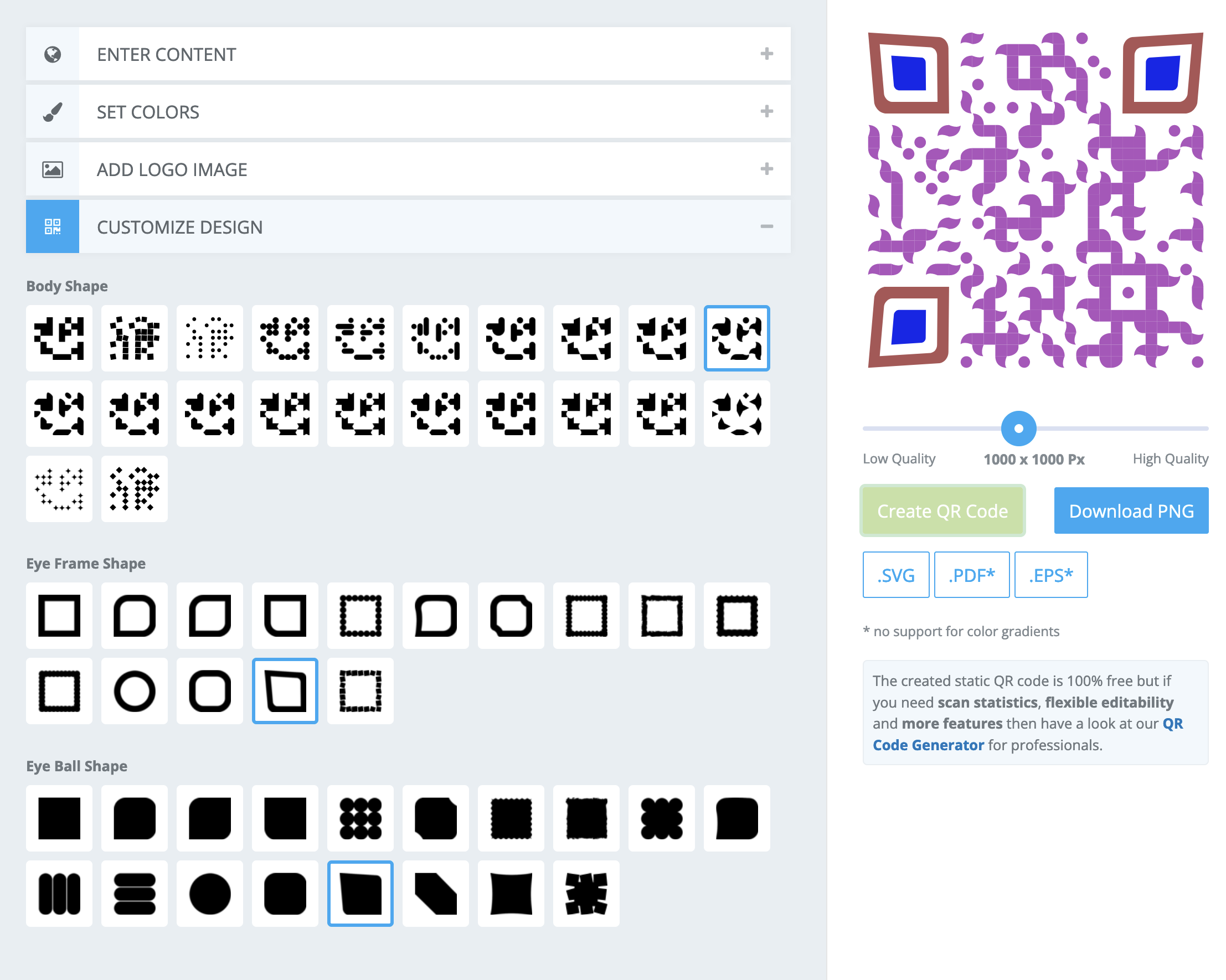
Here are the selections used for this QR code so that you can see which selection applies to what portion.
Keep in mind that your preview will only update when you press “Create QR Code” on the right.
When you download, keep in mind what the design/code will be used for when you select your file type. If you’re going to be printing it on a large sign, I would encourage using SVG, PDF, or EPS. If you aren’t sure what file types your design software or graphic designer allow, you are able to download it in multiple formats. PNG and PDF are fairly universal formats that can be read on most devices.
If you used the gradient option in your color settings, you cannot download as a PDF or EPS as those filetypes do not comply with gradients.
Once you select your file type you’re done! Put it on your website, instagram, brochure, posters, flyers— whatever you want!
QR Code and Canva
If you are already working in Canva and aren’t concerned about customizing your QR code, you can go under more, and select (or search if it isn’t at the top) QR code.
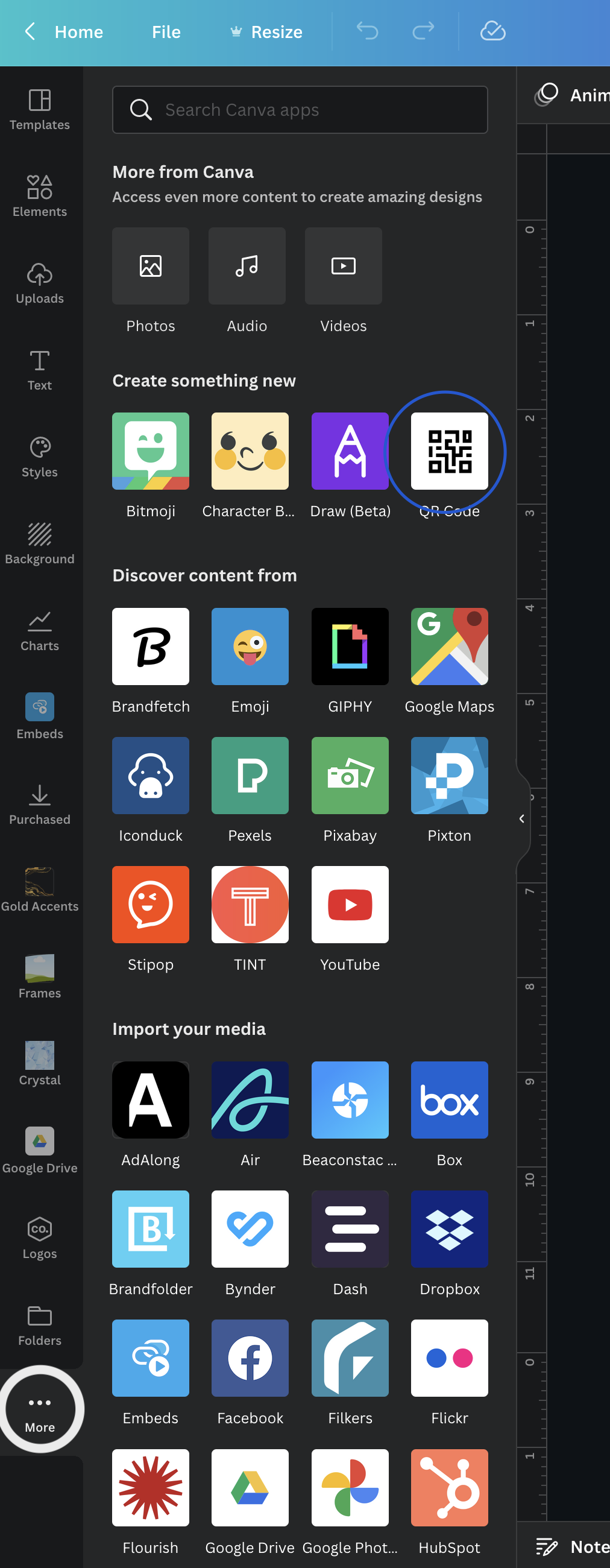
Once selected, just enter your URL and hit the Generate QR code Button.
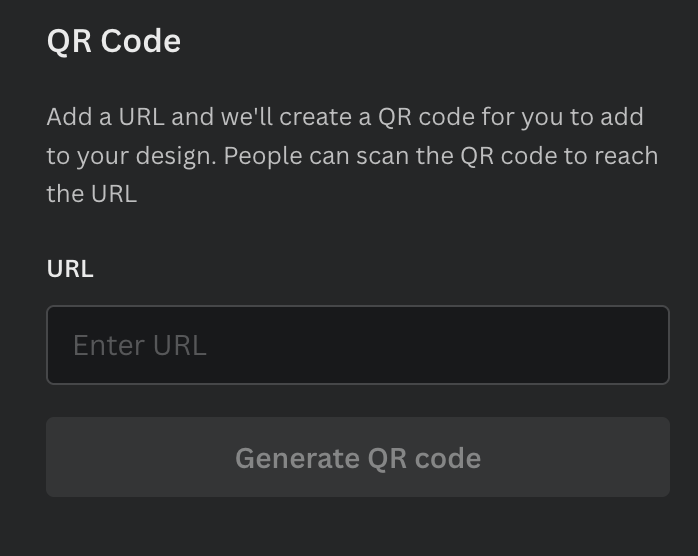
Canva will automatically plop the image onto your canvas.