When it comes to sending a mailer there are so many questions you may be asked by your printer. Don’t get me wrong, the artwork and paper choice is important, but the most important thing is to make sure your postcards, letters, and packages arrive on the correct door step. Here is how your mailer list should be formatted to ensure a smooth printing process.
We need a few critical things for mailers:
Name*, Company, Address, Address 2, City, State, Zip
*If you are interested in sending to a particular address and not a person, then we can always supply Current Resident instead of/in addition to a name. Example: You want to send to people only in Rockford. Last you knew, Jane Doe lived at 123 Main Street in Rockford, but she moved to Indiana. You don’t want to send to Jane Doe in Indiana, you want to sent to the current resident of 123 Main Street.
Now, there are a few different variations: see below.

This is the most simple list you can provide for us. Name, Address, City, State, Zip

This is a very common mailing list. First Name, Last Name, Title (opt), Company, Address, Address 2, City, State, Zip

Sometimes you have a lot of information in a mailing list and that’s okay! If you have a Member or customer ID that you need in the list to match up any changes to addresses in your database, that can remain in. Like the list previous, there are salutations given for inner item naming. There is also an optional title field for the outer addressing.

Sometimes you have two people at the same address, like two partners with different last names living together. We recommend adding a name 2 field for clarity. This list has an optional salutation field as well. This is usually used on inner materials, like a letter. Example: You want the envelope address to read “John Smith and Jane Doe” and the greeting inside the letter to say something like “Dear John and Jane,”.
All fields in this one are: Salutation (opt), First Name, Last Name, Name 2, Company, Address, Address 2, City, State, Zip.
Checking data
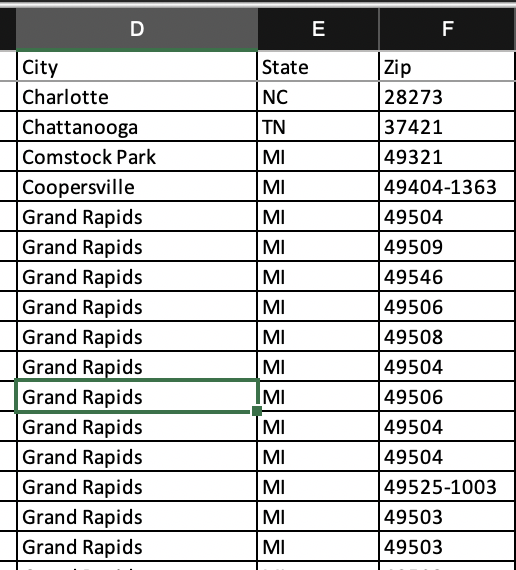
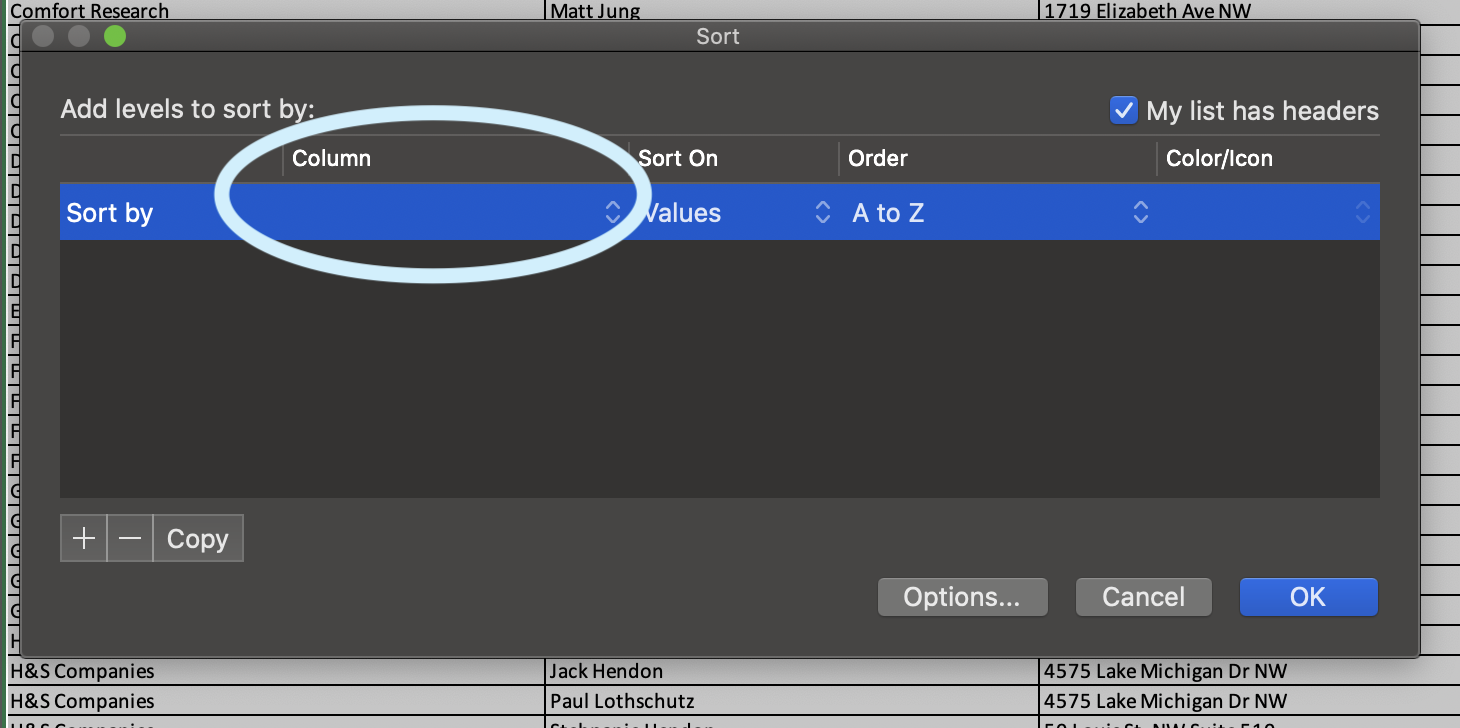
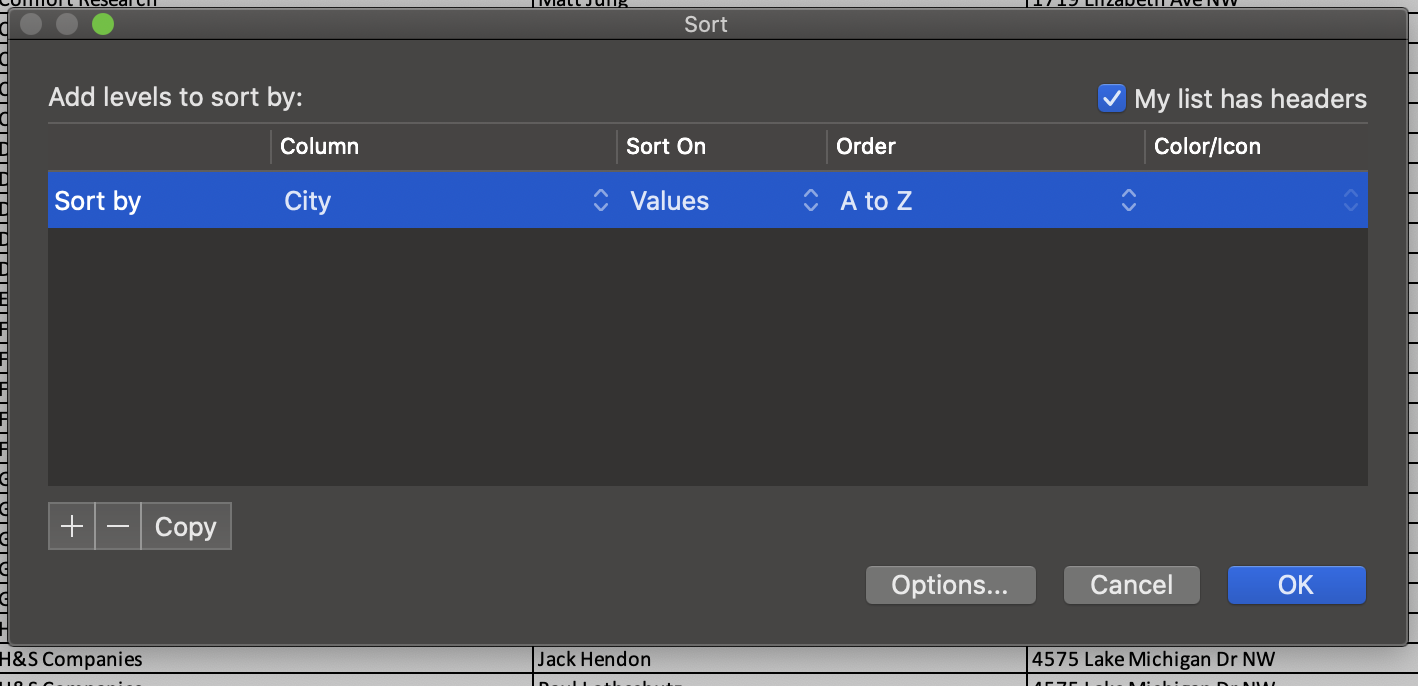
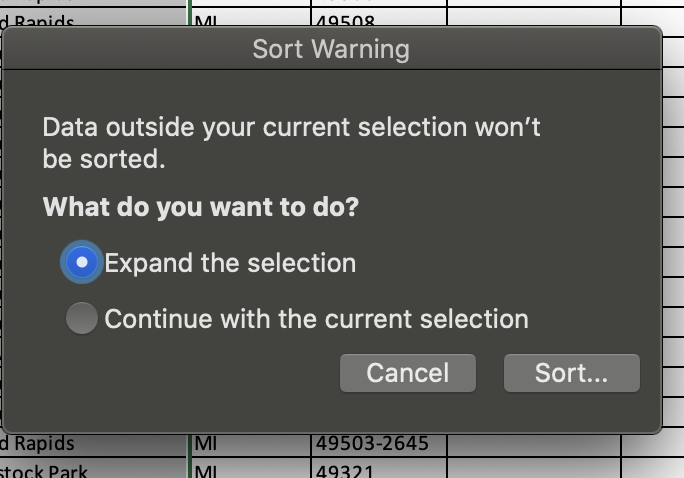
If you have a lot of entries going to the same zip code, State, or city, it’s optimal to sort the file by those fields to make sure there wasn’t a single record with “Grand Rapids” misspelt. A common mistake is having a zip code missing a number, the state or city being misspelt, or an accidental extra character in one of the fields.

Pre Sort
Post Sort
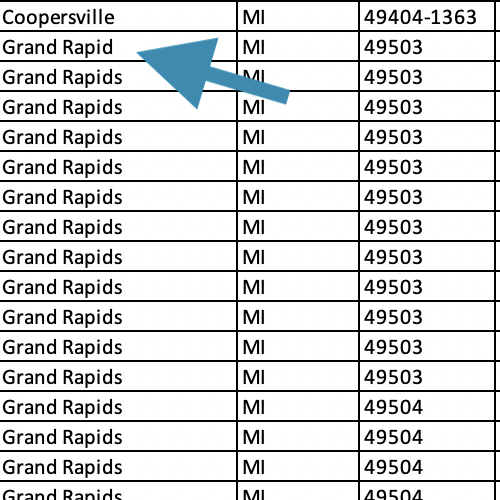
Misspelt City will be either above or below the similar records
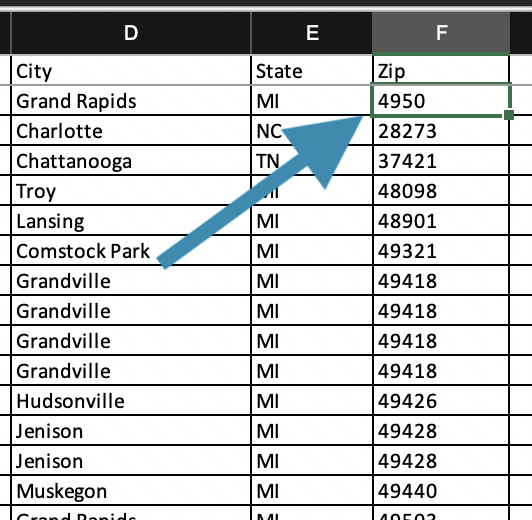
Zip codes missing a number will be at the top of the list. Those with an extra number will be at the bottom.
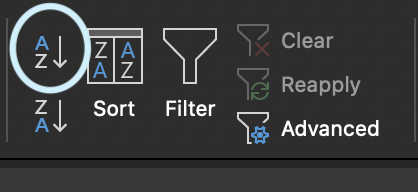
How to sort (Excel)

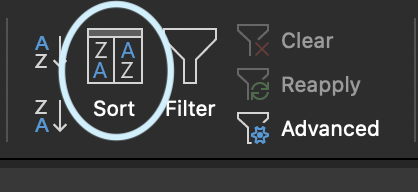
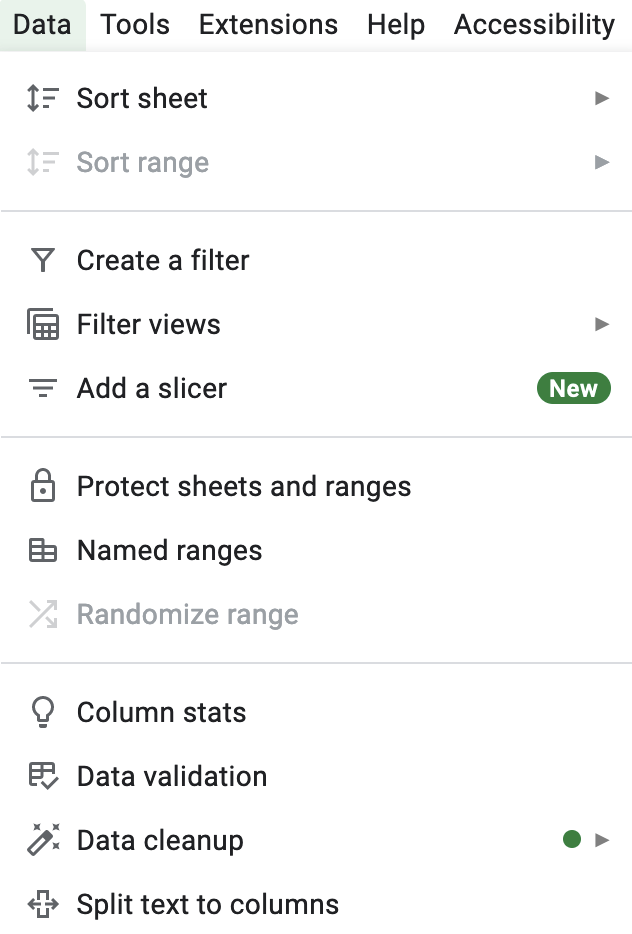
How to sort (Google Sheets)

Some Last Thoughts
Address vs Address 2
Enter the main street address into address. Additional information (apartment number, suite, unit number, or other address designation) will go into Address2.
Extra information
If you have extra tabs or hidden rows/columns, please be sure to delete these. Please do not send columns that are a calculated field. (IE taking FirstName and Lastname into a new field of Name.)
Zip Code
If you have an address and city, but not a zip code, here is a link to the USPS website to do a zip code lookup.